ME-QR / API QR 코드
대규모로 QR 코드를 생성하고 싶으신가요? Me-QR API를 비즈니스에 통합하여 프로세스를 자동화하세요. Me-QR API를 통해 모든 유형의 QR 코드를 생성할 수 있습니다.
단 한 번의 API 요청으로 몇 초 만에 첫 번째 QR 코드를 생성하세요.
curl -X POST https://me-qr.com/api/v2/qr/link/create \
-H "Content-Type: application/json" \
-H "X-AUTH-TOKEN: YOUR_API_TOKEN" \
-d '{
"qrFieldsData": {
"link": "https://example.com"
},
"format": "png",
"designType": "base"
}'
import requests
url = "https://me-qr.com/api/v2/qr/link/create"
headers = {
"Content-Type": "application/json",
"X-AUTH-TOKEN": "YOUR_API_TOKEN"
}
payload = {
"qrFieldsData": {
"link": "https://example.com"
},
"format": "png",
"designType": "base"
}
response = requests.post(url, json=payload, headers=headers)
print(response.json())
const response = await fetch(
'https://me-qr.com/api/v2/qr/link/create',
{
method: 'POST',
headers: {
'Content-Type': 'application/json',
'X-AUTH-TOKEN': 'YOUR_API_TOKEN'
},
body: JSON.stringify({
qrFieldsData: { link: 'https://example.com' },
format: 'png',
designType: 'base'
})
}
);
const data = await response.json();
console.log(data);
API 키를 사용하여 요청을 인증하세요.
대시보드에서 확인하세요:
API 키를 요청 헤더에 추가하세요.
Authorization: Bearer YOUR_API_KEY
API 사용, 제한 사항 및 액세스에 대해 알아야 할 모든 것.
매월 최대 10,000개의 QR 코드를 포함합니다.
$0.005 / 요구
최대 10만 건의 요청
$0.0025 / 요구
100k+ requests
무료
API 키 3개 · 유효기간 3일
프리미엄
무제한 API 키 · 만료 기한 없음
제공되는 매개변수를 사용하여 QR 코드의 내용, 모양 및 출력 형식을 정의하세요.
| 매개변수 | 유형 | 기본 | 설명 |
|---|---|---|---|
| token필수의 | string | — | API 기능 액세스 토큰 |
| qrType | integer | 1 | QR 코드 유형: 1=링크, 4=PDF, 5=이메일, 7=VCard… |
| qrFieldsData | object | [] | QR code content depending on the type (e.g. {"link": "https://…"}) |
| title | string | "Qr Code" | 대시보드에 표시되는 QR 코드 제목 |
| format | string | "png" | 출력 형식: png, svg, jpg, jpeg, json |
| designType | string | "base" | QR 디자인 유형: 기본 또는 아트 |
| qrFolderOptions | object | null | Folder placement: {"folderName": "…", "subfolderName": "…"} |
| entryId | integer | null | 새로운 QR 코드를 생성하는 대신 기존 QR 코드의 ID를 업데이트합니다. |
제공되는 매개변수를 사용하여 QR 코드의 내용, 모양 및 출력 형식을 정의하세요.
| 매개변수 | 유형 | 기본 | 설명 |
|---|---|---|---|
| qrOptions | |||
| size | integer | 300 | 반환된 QR 이미지의 크기(픽셀) |
| errorCorrectionLevel | string | "Q" | 오류 수정: L, M, Q, H |
| pattern | string | "square" | 점 스타일: 사각형, 점선, 둥근 모양, 고급스러운 모양, 마름모꼴, 반짝이는 모양… |
| patternColor | string | "#000000" | Color of QR dots |
| patternBackground | string | "#ffffff" | QR 코드의 배경색 |
| cornetsOuter | string | "square" | 외부 모서리 스타일: 사각형, 점, 고급형, 톱니바퀴형, 매우 둥근형… |
| cornetsOuterColor | string | "#000000" | 외부 모서리 색상 |
| cornetsInterior | string | "square" | 안쪽 모서리 스타일: 사각형, 점, 클래식, 마름모, 별… |
| cornetsInteriorColor | string | "#000000" | 안쪽 모서리 색상 |
| logotype | string | null | 중앙 로고: 미리 정의된 열거형, URL 또는 base64 이미지 |
| logotypeSize | number | 0.3 | 로고 크기 계수 0–1 (최대 권장값 0.5) |
| logotypeMargin | number | 0 | 로고 여백(픽셀) |
| logotypeHideBackground | boolean | true | 로고로 가려진 점들을 숨깁니다. |
| gradientPattern | object | null | 점의 그라디언트: {유형, 회전, 색상[]} |
| gradientCornetsOuter | object | null | 외부 모서리용 그라디언트 |
| gradientCornetsInterior | object | null | 내부 모서리용 그라디언트 |
| gradientBackground | object | null | 배경용 그라디언트 |
| qrFrame | |||
| name | string | "noFrame" | 액자 디자인 (200가지 이상의 옵션 또는 액자 없음) |
| color | string | "#000000" | 프레임 색상 |
| backgroundColor | string | "#ffffff" | 프레임 배경색 |
| text | string | "" | 프레임 레이블 텍스트 (최대 20자) |
| textSize | integer | null | 글꼴 크기(픽셀, 1~50) |
| textColor | string | "#9C3AAF" | 프레임 텍스트 색상 |
| textFont | string | "Roboto" | 글꼴: Arial, Roboto, Georgia, Verdana… |
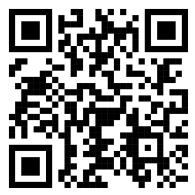
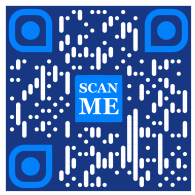
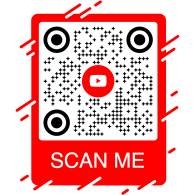
API 요청 예시와 해당 요청이 생성하는 QR 코드를 살펴보세요.
curl -X POST https://me-qr.com/api/v2/qr/link/create \
-H "Content-Type: application/json" \
-H "X-AUTH-TOKEN: YOUR_API_TOKEN" \
-d '{
"qrFieldsData": {
"link": "https://example.com"
},
"format": "png"
}'
curl -X POST https://me-qr.com/api/v2/qr/link/create \
-H "Content-Type: application/json" \
-H "X-AUTH-TOKEN: YOUR_API_TOKEN" \
-d '{
"qrFieldsData": {
"link": "https://example.com"
},
"format": "png",
"qrOptions": {
"patternColor": "#FFFFFF",
"patternBackground": "#173782",
"cornetsOuterColor": "#0281fb",
"cornetsInteriorColor": "#0281fb"
}
}'
curl -X POST https://me-qr.com/api/v2/qr/link/create \
-H "Content-Type: application/json" \
-H "X-AUTH-TOKEN: YOUR_API_TOKEN" \
-d '{
"qrFieldsData": {
"link": "https://example.com"
},
"format": "png",
"qrOptions": {
"logotype": "youTubeLogotype",
"logotypeSize": 0.3,
"logotypeMargin": 5,
"logotypeHideBackground": true
},
"qrFrame": {
"name": "frame1",
"color": "ff0000",
"backgroundColor": "#ffffff",
"text": "Scan me!",
"textColor": "#FFFFFF"
}
}'
API QR 코드 도구는 일괄 QR 코드 생성 및 비즈니스 프로세스와의 원활한 통합을 위해 설계된 강력한 도구로, QR 기술을 통한 자동화를 가능하게 합니다. 이 API는 운영을 간소화하고 효율성을 향상시키며, QR 코드를 워크플로에 통합하려는 기업에게 견고한 솔루션을 제공하는 데 매우 유용합니다.
API 기능의 대표적인 예는 프로그램 방식으로 QR 코드를 생성할 수 있는 /api/qr/create/ 엔드포인트를 통해 확인할 수 있습니다.
me-qr에서 제공하는 다양한 QR 코드 유형 중 하나를 사용하여 QR 코드를 생성할 수 있습니다. 요청할 때마다 새로운 QR 코드가 생성됩니다.
매개변수 없음
{
"token": "string",
"qrType": 1,
"qrFieldsData": {
"link": "https://example.com"
},
"entryId": null,
"title": "Qr Code",
"format": "png",
"designType": "base",
"qrFolderOptions": {
"folderName": null,
"subfolderName": null
},
"qrOptions": {
"size": 300,
"errorCorrectionLevel": "Q",
"pattern": "square",
"patternColor": "#000000",
"patternBackground": "#ffffff",
"cornetsOuter": "square",
"cornetsOuterColor": "#000000",
"cornetsInterior": "square",
"cornetsInteriorColor": "#000000",
"logotype": null,
"logotypeSize": 0.3,
"logotypeMargin": 0,
"logotypeHideBackground": true,
"gradientPattern": null,
"gradientCornetsOuter": null,
"gradientCornetsInterior": null,
"gradientBackground": null
},
"qrFrame": {
"name": "noFrame",
"color": "#000000",
"backgroundColor": "#ffffff",
"text": "",
"textSize": null,
"textColor": "#9C3AAF",
"textFont": "Roboto"
}
}
| 암호 | 설명 | 모래밭 |
|---|---|---|
| default | — | 링크 없음 |
Me-QR Generator API는 QR 코드 생성에 대한 포괄적인 제어 기능을 제공하여 사용자의 특정 요구 사항에 맞게 QR 코드를 맞춤 설정할 수 있는 다양한 기능을 제공합니다.
사용자 지정 QR 코드 API에서 지원하는 국가 목록을 가져옵니다.
이용 가능한 국가 목록을 불러옵니다.
| 이름 | 설명 |
|---|---|
|
country
string
(query)
|
국가명으로 검색하세요. |
| 암호 | 설명 | 모래밭 |
|---|---|---|
| 200 | 성공적인 응답 application/json
[
{
"id": 0,
"name": "string"
}
]
|
링크 없음 |
이 엔드포인트를 사용하면 사용 가능한 국가 목록을 가져올 수 있으므로 지리적 선호도에 따라 현지화 및 맞춤 설정이 용이합니다.
지원되는 도시 목록을 확인하여 QR 코드 세부 정보를 조정하세요.
이용 가능한 도시 목록을 불러옵니다.
| 이름 | 설명 |
|---|---|
|
country
string
(query)
|
국가명으로 검색하세요. |
| 암호 | 설명 | 모래밭 |
|---|---|---|
| 200 | 성공적인 응답 application/json
[
{
"id": 0,
"name": "string"
}
]
|
링크 없음 |
이 기능을 사용하면 특정 도시를 선택할 수 있으므로 위치 기반 캠페인이나 정보 전달에 QR 코드의 활용도를 높일 수 있습니다.
QR 코드에 시간 관련 정보를 포함시키려면 지원되는 시간대 목록을 확인하세요.
사용 가능한 시간대 목록을 가져옵니다.
| 이름 | 설명 |
|---|---|
|
timezone
string
(query)
|
시간대 이름으로 검색하세요. |
| 암호 | 설명 | 모래밭 |
|---|---|---|
| 200 | 성공적인 응답 application/json
[
{
"id": 0,
"name": "string"
}
]
|
링크 없음 |
이 기능을 사용하면 QR 코드 콘텐츠를 특정 시점의 데이터와 연동하여 관련성과 시의성을 보장할 수 있습니다.
QR 코드 텍스트 및 콘텐츠 맞춤 설정에 지원되는 언어 목록을 확인하세요.
사용 가능한 언어 목록을 가져옵니다.
| 이름 | 설명 |
|---|---|
|
language
string
(query)
|
언어 이름으로 검색하세요. |
| 암호 | 설명 | 모래밭 |
|---|---|---|
| 200 | 성공적인 응답 application/json
[
{
"id": 0,
"name": "string"
}
]
|
링크 없음 |
이 기능을 활용하면 다양한 언어 선호도를 충족하여 다국어 환경에서 QR 코드를 더욱 접근하기 쉽고 사용자 친화적으로 만들 수 있습니다.
이러한 기능이 제공하는 유연성을 통해 특정 지역, 도시, 시간대 및 언어에 맞춘 동적 QR 코드 API를 생성할 수 있으므로 QR 기반 커뮤니케이션 및 상호 작용 전략의 효과를 높일 수 있습니다.
저희 QR 코드 생성기 API는 다양한 요구사항과 기능을 충족하는 여러 유형의 QR 코드 생성 기능을 제공합니다. 이러한 유형 중 일부를 자세히 살펴보겠습니다.
무료 QR 코드 API는 원활하고 효율적인 특성 덕분에 결제 분야에서 매우 유용합니다. 거래를 간소화하고 보안을 강화하며 QR 코드 월별 결제를 신속하게 처리할 수 있습니다. 다음은 사용 방법을 보여주는 간단한 코드 예제입니다.
무료 QR 코드 API는 기업과 개인이 거래를 간소화할 수 있도록 지원함으로써 결제 분야에서 매우 유용한 도구로 입증되었습니다. QR 코드에 결제 URL을 삽입하면 고객은 스마트폰으로 코드를 빠르게 스캔하여 간편하게 거래를 완료할 수 있습니다.
{
"qrFieldsData": {
"link"*: "https://example.com/pay"
}
}
| 필드 | 유형 | 필수의 | 설명 |
|---|---|---|---|
| link | string($hostname) | required | 결제 페이지 URL |
QR 코드 API를 생성하여 당사와 함께 결제 프로세스를 혁신하고 거래를 원활하고 효율적인 경험으로 전환하십시오.
QR 코드 API를 생성하여 결제 프로세스를 혁신하세요. 안전하고 효율적인 거래를 애플리케이션에 원활하게 통합할 수 있습니다.
QR 코드 결제 API의 대표적인 예로는 페이팔 QR 코드가 있습니다. 온라인 결제 분야의 선두주자로 잘 알려진 페이팔의 API 통합은 안전한 거래를 간소화합니다. 다음은 기본적인 구현 예시입니다.
PayPal QR 코드 API를 사용하면 PayPal 결제 링크를 QR 코드에 원활하게 통합할 수 있습니다. 사용자는 QR 코드를 스캔하여 즉시 PayPal 결제 페이지로 이동할 수 있으므로 기업과 고객 모두에게 빠르고 편리한 거래가 가능합니다.
{
"qrFieldsData": {
"link"*: "https://paypal.me/username"
}
}
| 필드 | 유형 | 필수의 | 설명 |
|---|---|---|---|
| link | string($hostname) | required | PayPal.me 또는 결제 URL |
PayPal QR 코드 API를 활용하여 결제 과정을 간소화하고 가속화하여 사용자에게 현대적인 결제 경험을 제공하세요.
Me-QR의 PayPal QR 코드 API로 온라인 결제 경험을 한 단계 업그레이드하세요. 안전하고 효율적인 PayPal 거래를 애플리케이션에 손쉽게 통합할 수 있습니다.
로고 삽입 기능이 있는 QR 코드 생성기 API는 특히 인기가 높습니다. 이 기능을 사용하면 로고가 포함된 QR 코드를 제공하여 로고를 QR 코드 디자인에 삽입할 수 있습니다. 브랜드 인지도 향상 및 맞춤화를 위한 최적의 선택입니다.
Logo QR Code API를 사용하면 어떤 URL로든 연결되는 QR 코드를 생성할 수 있습니다. 브랜드 페이지, 포트폴리오 또는 랜딩 페이지에 활용하기에 안성맞춤입니다. 원하는 URL을 QR 코드에 삽입하여 사용자에게 깔끔하고 스캔하기 쉬운 경험을 제공하세요.
{
"qrFieldsData": {
"link"*: "https://example.com"
}
}
| 필드 | 유형 | 필수의 | 설명 |
|---|---|---|---|
| link | string($hostname) | required | 목적지 URL |
로고 QR 코드 API를 사용하여 브랜드 인지도와 QR 기술의 편리함을 결합하여 모든 목적지를 손쉽게 연결하세요.
무료 QR 코드 생성기 API를 사용하여 모든 스캔에 브랜드를 각인시키세요. 브랜드 인지도를 높이고 로고를 삽입하여 QR 코드를 손쉽게 맞춤 설정하세요.
WhatsApp API QR 코드는 메신저 QR API 중에서 독보적인 위치를 차지하고 있습니다. 이 API를 활용하면 WhatsApp에 빠르게 접속할 수 있어 원활한 상호 작용이 가능하며, 메신저 기반 QR 기능 분야에서 선두 주자입니다. 다음은 예시입니다.
WhatsApp QR 코드 API를 사용하면 미리 작성된 메시지가 포함된 WhatsApp 대화를 여는 QR 코드를 생성할 수 있습니다. 전화번호와 선택적으로 메시지를 입력하기만 하면 됩니다. 고객 지원, 마케팅 캠페인 및 즉각적인 소통에 이상적입니다.
{
"qrFieldsData": {
"phone"*: "+1234567890",
"message"*: "Hello!"
}
}
| 필드 | 유형 | 필수의 | 설명 |
|---|---|---|---|
| phone | string | required | 수신자 전화번호 (국제 형식) |
| message | string | required | 미리 채워진 메시지 텍스트 |
WhatsApp QR 코드 API를 통합하여 단 한 번의 스캔으로 직접적인 대화를 유도하고 참여도를 높이세요.
WhatsApp QR 코드(WhatsApp QR 코드)를 통해 청중과 원활하게 소통하세요. 스캔 한 번으로 대화에 빠르게 접근하여 메시지 경험을 향상시키세요.
QR 코드 API 무료 버전은 다양한 요구 사항을 충족하는 포괄적인 QR 코드 API 생성기 유형을 제공합니다. 지원되는 QR API 유형과 각 유형에 대한 코드 예제를 살펴보세요.
사용자를 임의의 URL로 연결하는 QR 코드를 생성하세요.
스캔 시 임의의 URL로 연결되는 QR 코드를 생성하세요.
{
"qrFieldsData": {
"link": "https://example.com"
},
"title": "Qr Code",
"format": "png",
"designType": "base",
"qrFolderOptions": {
"folderName": null,
"subfolderName": null
},
"qrOptions": {
"size": 300,
"errorCorrectionLevel": "Q",
"pattern": "square",
"patternColor": "#000000",
"patternBackground": "#ffffff",
"cornetsOuter": "square",
"cornetsOuterColor": "#000000",
"cornetsInterior": "square",
"cornetsInteriorColor": "#000000",
"logotype": null,
"logotypeSize": 0.3,
"logotypeMargin": 0,
"logotypeHideBackground": true,
"gradientPattern": null,
"gradientCornetsOuter": null,
"gradientCornetsInterior": null,
"gradientBackground": null
},
"qrFrame": {
"name": "noFrame",
"color": "#000000",
"backgroundColor": "#ffffff",
"text": "",
"textSize": null,
"textColor": "#9C3AAF",
"textFont": "Roboto"
}
}
QR 코드의 데이터 및 스타일 매개변수를 변경합니다.
entryUIDpath ID 또는 고유 입력 키(QR 코드)
{
"qrFieldsData": {
"link": "https://example.com"
},
"title": "Qr Code",
"format": "png",
"designType": "base",
"qrFolderOptions": {
"folderName": null,
"subfolderName": null
},
"qrOptions": {
"size": 300,
"errorCorrectionLevel": "Q",
"pattern": "square",
"patternColor": "#000000",
"patternBackground": "#ffffff",
"cornetsOuter": "square",
"cornetsOuterColor": "#000000",
"cornetsInterior": "square",
"cornetsInteriorColor": "#000000",
"logotype": null,
"logotypeSize": 0.3,
"logotypeMargin": 0,
"logotypeHideBackground": true,
"gradientPattern": null,
"gradientCornetsOuter": null,
"gradientCornetsInterior": null,
"gradientBackground": null
},
"qrFrame": {
"name": "noFrame",
"color": "#000000",
"backgroundColor": "#ffffff",
"text": "",
"textSize": null,
"textColor": "#9C3AAF",
"textFont": "Roboto"
}
}
생성된 QR 코드의 데이터 및 사용자 지정 설정 또는 이미지 자체를 확인하세요.
entryUID path ID 또는 고유 입력 키(QR 코드)
format query 이미지 형식. 사용 가능한 값: png, svg, jpg, jpeg, json. 기본값: null
{
"qrFieldsData": {
"link": "https://example.com"
},
"title": "Qr Code",
"format": "png",
"designType": "base",
"qrFolderOptions": {
"folderName": null,
"subfolderName": null
},
"qrOptions": {
"size": 300,
"errorCorrectionLevel": "Q",
"pattern": "square",
"patternColor": "#000000",
"patternBackground": "#ffffff",
"cornetsOuter": "square",
"cornetsOuterColor": "#000000",
"cornetsInterior": "square",
"cornetsInteriorColor": "#000000",
"logotype": null,
"logotypeSize": 0.3,
"logotypeMargin": 0,
"logotypeHideBackground": true,
"gradientPattern": null,
"gradientCornetsOuter": null,
"gradientCornetsInterior": null,
"gradientBackground": null
},
"qrFrame": {
"name": "noFrame",
"color": "#000000",
"backgroundColor": "#ffffff",
"text": "",
"textSize": null,
"textColor": "#9C3AAF",
"textFont": "Roboto"
}
}
QR 코드를 사용하여 인스타그램 프로필과 연결하세요.
인스타그램 프로필 또는 게시물로 바로 연결되는 QR 코드를 생성합니다.
{
"qrFieldsData": {
"link": "https://www.instagram.com/username"
},
"title": "Qr Code",
"format": "png",
"designType": "base",
"qrFolderOptions": {
"folderName": null,
"subfolderName": null
},
"qrOptions": {
"size": 300,
"errorCorrectionLevel": "Q",
"pattern": "square",
"patternColor": "#000000",
"patternBackground": "#ffffff",
"cornetsOuter": "square",
"cornetsOuterColor": "#000000",
"cornetsInterior": "square",
"cornetsInteriorColor": "#000000",
"logotype": null,
"logotypeSize": 0.3,
"logotypeMargin": 0,
"logotypeHideBackground": true,
"gradientPattern": null,
"gradientCornetsOuter": null,
"gradientCornetsInterior": null,
"gradientBackground": null
},
"qrFrame": {
"name": "noFrame",
"color": "#000000",
"backgroundColor": "#ffffff",
"text": "",
"textSize": null,
"textColor": "#9C3AAF",
"textFont": "Roboto"
}
}
QR 코드의 데이터 및 스타일 매개변수를 변경합니다.
entryUIDpath ID 또는 고유 입력 키(QR 코드)
{
"qrFieldsData": {
"link": "https://www.instagram.com/username"
},
"title": "Qr Code",
"format": "png",
"designType": "base",
"qrFolderOptions": {
"folderName": null,
"subfolderName": null
},
"qrOptions": {
"size": 300,
"errorCorrectionLevel": "Q",
"pattern": "square",
"patternColor": "#000000",
"patternBackground": "#ffffff",
"cornetsOuter": "square",
"cornetsOuterColor": "#000000",
"cornetsInterior": "square",
"cornetsInteriorColor": "#000000",
"logotype": null,
"logotypeSize": 0.3,
"logotypeMargin": 0,
"logotypeHideBackground": true,
"gradientPattern": null,
"gradientCornetsOuter": null,
"gradientCornetsInterior": null,
"gradientBackground": null
},
"qrFrame": {
"name": "noFrame",
"color": "#000000",
"backgroundColor": "#ffffff",
"text": "",
"textSize": null,
"textColor": "#9C3AAF",
"textFont": "Roboto"
}
}
생성된 QR 코드의 데이터 및 사용자 지정 설정 또는 이미지 자체를 확인하세요.
entryUID path ID 또는 고유 입력 키(QR 코드)
format query 이미지 형식. 사용 가능한 값: png, svg, jpg, jpeg, json. 기본값: null
{
"qrFieldsData": {
"link": "https://www.instagram.com/username"
},
"title": "Qr Code",
"format": "png",
"designType": "base",
"qrFolderOptions": {
"folderName": null,
"subfolderName": null
},
"qrOptions": {
"size": 300,
"errorCorrectionLevel": "Q",
"pattern": "square",
"patternColor": "#000000",
"patternBackground": "#ffffff",
"cornetsOuter": "square",
"cornetsOuterColor": "#000000",
"cornetsInterior": "square",
"cornetsInteriorColor": "#000000",
"logotype": null,
"logotypeSize": 0.3,
"logotypeMargin": 0,
"logotypeHideBackground": true,
"gradientPattern": null,
"gradientCornetsOuter": null,
"gradientCornetsInterior": null,
"gradientBackground": null
},
"qrFrame": {
"name": "noFrame",
"color": "#000000",
"backgroundColor": "#ffffff",
"text": "",
"textSize": null,
"textColor": "#9C3AAF",
"textFont": "Roboto"
}
}
QR 코드 생성기 REST API를 통해 Facebook 프로필 또는 페이지에 연결합니다.
페이스북 페이지, 그룹 또는 프로필에 연결되는 QR 코드를 생성합니다.
{
"qrFieldsData": {
"link": "https://www.facebook.com/pagename"
},
"title": "Qr Code",
"format": "png",
"designType": "base",
"qrFolderOptions": {
"folderName": null,
"subfolderName": null
},
"qrOptions": {
"size": 300,
"errorCorrectionLevel": "Q",
"pattern": "square",
"patternColor": "#000000",
"patternBackground": "#ffffff",
"cornetsOuter": "square",
"cornetsOuterColor": "#000000",
"cornetsInterior": "square",
"cornetsInteriorColor": "#000000",
"logotype": null,
"logotypeSize": 0.3,
"logotypeMargin": 0,
"logotypeHideBackground": true,
"gradientPattern": null,
"gradientCornetsOuter": null,
"gradientCornetsInterior": null,
"gradientBackground": null
},
"qrFrame": {
"name": "noFrame",
"color": "#000000",
"backgroundColor": "#ffffff",
"text": "",
"textSize": null,
"textColor": "#9C3AAF",
"textFont": "Roboto"
}
}
QR 코드의 데이터 및 스타일 매개변수를 변경합니다.
entryUIDpath ID 또는 고유 입력 키(QR 코드)
{
"qrFieldsData": {
"link": "https://www.facebook.com/pagename"
},
"title": "Qr Code",
"format": "png",
"designType": "base",
"qrFolderOptions": {
"folderName": null,
"subfolderName": null
},
"qrOptions": {
"size": 300,
"errorCorrectionLevel": "Q",
"pattern": "square",
"patternColor": "#000000",
"patternBackground": "#ffffff",
"cornetsOuter": "square",
"cornetsOuterColor": "#000000",
"cornetsInterior": "square",
"cornetsInteriorColor": "#000000",
"logotype": null,
"logotypeSize": 0.3,
"logotypeMargin": 0,
"logotypeHideBackground": true,
"gradientPattern": null,
"gradientCornetsOuter": null,
"gradientCornetsInterior": null,
"gradientBackground": null
},
"qrFrame": {
"name": "noFrame",
"color": "#000000",
"backgroundColor": "#ffffff",
"text": "",
"textSize": null,
"textColor": "#9C3AAF",
"textFont": "Roboto"
}
}
생성된 QR 코드의 데이터 및 사용자 지정 설정 또는 이미지 자체를 확인하세요.
entryUID path ID 또는 고유 입력 키(QR 코드)
format query 이미지 형식. 사용 가능한 값: png, svg, jpg, jpeg, json. 기본값: null
{
"qrFieldsData": {
"link": "https://www.facebook.com/pagename"
},
"title": "Qr Code",
"format": "png",
"designType": "base",
"qrFolderOptions": {
"folderName": null,
"subfolderName": null
},
"qrOptions": {
"size": 300,
"errorCorrectionLevel": "Q",
"pattern": "square",
"patternColor": "#000000",
"patternBackground": "#ffffff",
"cornetsOuter": "square",
"cornetsOuterColor": "#000000",
"cornetsInterior": "square",
"cornetsInteriorColor": "#000000",
"logotype": null,
"logotypeSize": 0.3,
"logotypeMargin": 0,
"logotypeHideBackground": true,
"gradientPattern": null,
"gradientCornetsOuter": null,
"gradientCornetsInterior": null,
"gradientBackground": null
},
"qrFrame": {
"name": "noFrame",
"color": "#000000",
"backgroundColor": "#ffffff",
"text": "",
"textSize": null,
"textColor": "#9C3AAF",
"textFont": "Roboto"
}
}
QR 코드를 이용해 트위터 프로필이나 트윗에 접속하세요.
사용자를 트위터/X 프로필 또는 트윗으로 연결하는 QR 코드를 생성하세요.
{
"qrFieldsData": {
"link": "https://twitter.com/username"
},
"title": "Qr Code",
"format": "png",
"designType": "base",
"qrFolderOptions": {
"folderName": null,
"subfolderName": null
},
"qrOptions": {
"size": 300,
"errorCorrectionLevel": "Q",
"pattern": "square",
"patternColor": "#000000",
"patternBackground": "#ffffff",
"cornetsOuter": "square",
"cornetsOuterColor": "#000000",
"cornetsInterior": "square",
"cornetsInteriorColor": "#000000",
"logotype": null,
"logotypeSize": 0.3,
"logotypeMargin": 0,
"logotypeHideBackground": true,
"gradientPattern": null,
"gradientCornetsOuter": null,
"gradientCornetsInterior": null,
"gradientBackground": null
},
"qrFrame": {
"name": "noFrame",
"color": "#000000",
"backgroundColor": "#ffffff",
"text": "",
"textSize": null,
"textColor": "#9C3AAF",
"textFont": "Roboto"
}
}
QR 코드의 데이터 및 스타일 매개변수를 변경합니다.
entryUIDpath ID 또는 고유 입력 키(QR 코드)
{
"qrFieldsData": {
"link": "https://twitter.com/username"
},
"title": "Qr Code",
"format": "png",
"designType": "base",
"qrFolderOptions": {
"folderName": null,
"subfolderName": null
},
"qrOptions": {
"size": 300,
"errorCorrectionLevel": "Q",
"pattern": "square",
"patternColor": "#000000",
"patternBackground": "#ffffff",
"cornetsOuter": "square",
"cornetsOuterColor": "#000000",
"cornetsInterior": "square",
"cornetsInteriorColor": "#000000",
"logotype": null,
"logotypeSize": 0.3,
"logotypeMargin": 0,
"logotypeHideBackground": true,
"gradientPattern": null,
"gradientCornetsOuter": null,
"gradientCornetsInterior": null,
"gradientBackground": null
},
"qrFrame": {
"name": "noFrame",
"color": "#000000",
"backgroundColor": "#ffffff",
"text": "",
"textSize": null,
"textColor": "#9C3AAF",
"textFont": "Roboto"
}
}
생성된 QR 코드의 데이터 및 사용자 지정 설정 또는 이미지 자체를 확인하세요.
entryUID path ID 또는 고유 입력 키(QR 코드)
format query 이미지 형식. 사용 가능한 값: png, svg, jpg, jpeg, json. 기본값: null
{
"qrFieldsData": {
"link": "https://twitter.com/username"
},
"title": "Qr Code",
"format": "png",
"designType": "base",
"qrFolderOptions": {
"folderName": null,
"subfolderName": null
},
"qrOptions": {
"size": 300,
"errorCorrectionLevel": "Q",
"pattern": "square",
"patternColor": "#000000",
"patternBackground": "#ffffff",
"cornetsOuter": "square",
"cornetsOuterColor": "#000000",
"cornetsInterior": "square",
"cornetsInteriorColor": "#000000",
"logotype": null,
"logotypeSize": 0.3,
"logotypeMargin": 0,
"logotypeHideBackground": true,
"gradientPattern": null,
"gradientCornetsOuter": null,
"gradientCornetsInterior": null,
"gradientBackground": null
},
"qrFrame": {
"name": "noFrame",
"color": "#000000",
"backgroundColor": "#ffffff",
"text": "",
"textSize": null,
"textColor": "#9C3AAF",
"textFont": "Roboto"
}
}
QR 코드를 이용해 틱톡 프로필을 찾아보세요.
틱톡 프로필 또는 동영상에 연결되는 QR 코드를 생성합니다.
{
"qrFieldsData": {
"link": "https://www.tiktok.com/@username"
},
"title": "Qr Code",
"format": "png",
"designType": "base",
"qrFolderOptions": {
"folderName": null,
"subfolderName": null
},
"qrOptions": {
"size": 300,
"errorCorrectionLevel": "Q",
"pattern": "square",
"patternColor": "#000000",
"patternBackground": "#ffffff",
"cornetsOuter": "square",
"cornetsOuterColor": "#000000",
"cornetsInterior": "square",
"cornetsInteriorColor": "#000000",
"logotype": null,
"logotypeSize": 0.3,
"logotypeMargin": 0,
"logotypeHideBackground": true,
"gradientPattern": null,
"gradientCornetsOuter": null,
"gradientCornetsInterior": null,
"gradientBackground": null
},
"qrFrame": {
"name": "noFrame",
"color": "#000000",
"backgroundColor": "#ffffff",
"text": "",
"textSize": null,
"textColor": "#9C3AAF",
"textFont": "Roboto"
}
}
QR 코드의 데이터 및 스타일 매개변수를 변경합니다.
entryUIDpath ID 또는 고유 입력 키(QR 코드)
{
"qrFieldsData": {
"link": "https://www.tiktok.com/@username"
},
"title": "Qr Code",
"format": "png",
"designType": "base",
"qrFolderOptions": {
"folderName": null,
"subfolderName": null
},
"qrOptions": {
"size": 300,
"errorCorrectionLevel": "Q",
"pattern": "square",
"patternColor": "#000000",
"patternBackground": "#ffffff",
"cornetsOuter": "square",
"cornetsOuterColor": "#000000",
"cornetsInterior": "square",
"cornetsInteriorColor": "#000000",
"logotype": null,
"logotypeSize": 0.3,
"logotypeMargin": 0,
"logotypeHideBackground": true,
"gradientPattern": null,
"gradientCornetsOuter": null,
"gradientCornetsInterior": null,
"gradientBackground": null
},
"qrFrame": {
"name": "noFrame",
"color": "#000000",
"backgroundColor": "#ffffff",
"text": "",
"textSize": null,
"textColor": "#9C3AAF",
"textFont": "Roboto"
}
}
생성된 QR 코드의 데이터 및 사용자 지정 설정 또는 이미지 자체를 확인하세요.
entryUID path ID 또는 고유 입력 키(QR 코드)
format query 이미지 형식. 사용 가능한 값: png, svg, jpg, jpeg, json. 기본값: null
{
"qrFieldsData": {
"link": "https://www.tiktok.com/@username"
},
"title": "Qr Code",
"format": "png",
"designType": "base",
"qrFolderOptions": {
"folderName": null,
"subfolderName": null
},
"qrOptions": {
"size": 300,
"errorCorrectionLevel": "Q",
"pattern": "square",
"patternColor": "#000000",
"patternBackground": "#ffffff",
"cornetsOuter": "square",
"cornetsOuterColor": "#000000",
"cornetsInterior": "square",
"cornetsInteriorColor": "#000000",
"logotype": null,
"logotypeSize": 0.3,
"logotypeMargin": 0,
"logotypeHideBackground": true,
"gradientPattern": null,
"gradientCornetsOuter": null,
"gradientCornetsInterior": null,
"gradientBackground": null
},
"qrFrame": {
"name": "noFrame",
"color": "#000000",
"backgroundColor": "#ffffff",
"text": "",
"textSize": null,
"textColor": "#9C3AAF",
"textFont": "Roboto"
}
}
Snapchat QR을 통해 프로필과 연결하세요.
스냅챗 프로필로 바로 연결되는 QR 코드를 생성합니다.
{
"qrFieldsData": {
"link": "https://www.snapchat.com/add/username"
},
"title": "Qr Code",
"format": "png",
"designType": "base",
"qrFolderOptions": {
"folderName": null,
"subfolderName": null
},
"qrOptions": {
"size": 300,
"errorCorrectionLevel": "Q",
"pattern": "square",
"patternColor": "#000000",
"patternBackground": "#ffffff",
"cornetsOuter": "square",
"cornetsOuterColor": "#000000",
"cornetsInterior": "square",
"cornetsInteriorColor": "#000000",
"logotype": null,
"logotypeSize": 0.3,
"logotypeMargin": 0,
"logotypeHideBackground": true,
"gradientPattern": null,
"gradientCornetsOuter": null,
"gradientCornetsInterior": null,
"gradientBackground": null
},
"qrFrame": {
"name": "noFrame",
"color": "#000000",
"backgroundColor": "#ffffff",
"text": "",
"textSize": null,
"textColor": "#9C3AAF",
"textFont": "Roboto"
}
}
QR 코드의 데이터 및 스타일 매개변수를 변경합니다.
entryUIDpath ID 또는 고유 입력 키(QR 코드)
{
"qrFieldsData": {
"link": "https://www.snapchat.com/add/username"
},
"title": "Qr Code",
"format": "png",
"designType": "base",
"qrFolderOptions": {
"folderName": null,
"subfolderName": null
},
"qrOptions": {
"size": 300,
"errorCorrectionLevel": "Q",
"pattern": "square",
"patternColor": "#000000",
"patternBackground": "#ffffff",
"cornetsOuter": "square",
"cornetsOuterColor": "#000000",
"cornetsInterior": "square",
"cornetsInteriorColor": "#000000",
"logotype": null,
"logotypeSize": 0.3,
"logotypeMargin": 0,
"logotypeHideBackground": true,
"gradientPattern": null,
"gradientCornetsOuter": null,
"gradientCornetsInterior": null,
"gradientBackground": null
},
"qrFrame": {
"name": "noFrame",
"color": "#000000",
"backgroundColor": "#ffffff",
"text": "",
"textSize": null,
"textColor": "#9C3AAF",
"textFont": "Roboto"
}
}
생성된 QR 코드의 데이터 및 사용자 지정 설정 또는 이미지 자체를 확인하세요.
entryUID path ID 또는 고유 입력 키(QR 코드)
format query 이미지 형식. 사용 가능한 값: png, svg, jpg, jpeg, json. 기본값: null
{
"qrFieldsData": {
"link": "https://www.snapchat.com/add/username"
},
"title": "Qr Code",
"format": "png",
"designType": "base",
"qrFolderOptions": {
"folderName": null,
"subfolderName": null
},
"qrOptions": {
"size": 300,
"errorCorrectionLevel": "Q",
"pattern": "square",
"patternColor": "#000000",
"patternBackground": "#ffffff",
"cornetsOuter": "square",
"cornetsOuterColor": "#000000",
"cornetsInterior": "square",
"cornetsInteriorColor": "#000000",
"logotype": null,
"logotypeSize": 0.3,
"logotypeMargin": 0,
"logotypeHideBackground": true,
"gradientPattern": null,
"gradientCornetsOuter": null,
"gradientCornetsInterior": null,
"gradientBackground": null
},
"qrFrame": {
"name": "noFrame",
"color": "#000000",
"backgroundColor": "#ffffff",
"text": "",
"textSize": null,
"textColor": "#9C3AAF",
"textFont": "Roboto"
}
}
QR 코드를 사용하여 텔레그램 채널이나 그룹에 참여하세요.
텔레그램 채널, 봇 또는 연락처에 연결되는 QR 코드를 생성하세요.
{
"qrFieldsData": {
"link": "https://t.me/username"
},
"title": "Qr Code",
"format": "png",
"designType": "base",
"qrFolderOptions": {
"folderName": null,
"subfolderName": null
},
"qrOptions": {
"size": 300,
"errorCorrectionLevel": "Q",
"pattern": "square",
"patternColor": "#000000",
"patternBackground": "#ffffff",
"cornetsOuter": "square",
"cornetsOuterColor": "#000000",
"cornetsInterior": "square",
"cornetsInteriorColor": "#000000",
"logotype": null,
"logotypeSize": 0.3,
"logotypeMargin": 0,
"logotypeHideBackground": true,
"gradientPattern": null,
"gradientCornetsOuter": null,
"gradientCornetsInterior": null,
"gradientBackground": null
},
"qrFrame": {
"name": "noFrame",
"color": "#000000",
"backgroundColor": "#ffffff",
"text": "",
"textSize": null,
"textColor": "#9C3AAF",
"textFont": "Roboto"
}
}
QR 코드의 데이터 및 스타일 매개변수를 변경합니다.
entryUIDpath ID 또는 고유 입력 키(QR 코드)
{
"qrFieldsData": {
"link": "https://t.me/username"
},
"title": "Qr Code",
"format": "png",
"designType": "base",
"qrFolderOptions": {
"folderName": null,
"subfolderName": null
},
"qrOptions": {
"size": 300,
"errorCorrectionLevel": "Q",
"pattern": "square",
"patternColor": "#000000",
"patternBackground": "#ffffff",
"cornetsOuter": "square",
"cornetsOuterColor": "#000000",
"cornetsInterior": "square",
"cornetsInteriorColor": "#000000",
"logotype": null,
"logotypeSize": 0.3,
"logotypeMargin": 0,
"logotypeHideBackground": true,
"gradientPattern": null,
"gradientCornetsOuter": null,
"gradientCornetsInterior": null,
"gradientBackground": null
},
"qrFrame": {
"name": "noFrame",
"color": "#000000",
"backgroundColor": "#ffffff",
"text": "",
"textSize": null,
"textColor": "#9C3AAF",
"textFont": "Roboto"
}
}
생성된 QR 코드의 데이터 및 사용자 지정 설정 또는 이미지 자체를 확인하세요.
entryUID path ID 또는 고유 입력 키(QR 코드)
format query 이미지 형식. 사용 가능한 값: png, svg, jpg, jpeg, json. 기본값: null
{
"qrFieldsData": {
"link": "https://t.me/username"
},
"title": "Qr Code",
"format": "png",
"designType": "base",
"qrFolderOptions": {
"folderName": null,
"subfolderName": null
},
"qrOptions": {
"size": 300,
"errorCorrectionLevel": "Q",
"pattern": "square",
"patternColor": "#000000",
"patternBackground": "#ffffff",
"cornetsOuter": "square",
"cornetsOuterColor": "#000000",
"cornetsInterior": "square",
"cornetsInteriorColor": "#000000",
"logotype": null,
"logotypeSize": 0.3,
"logotypeMargin": 0,
"logotypeHideBackground": true,
"gradientPattern": null,
"gradientCornetsOuter": null,
"gradientCornetsInterior": null,
"gradientBackground": null
},
"qrFrame": {
"name": "noFrame",
"color": "#000000",
"backgroundColor": "#ffffff",
"text": "",
"textSize": null,
"textColor": "#9C3AAF",
"textFont": "Roboto"
}
}
QR 코드를 사용하여 특정 Spotify 노래, 앨범 또는 아티스트에 액세스하세요.
Spotify의 트랙, 앨범 또는 아티스트 페이지를 여는 QR 코드를 생성합니다.
{
"qrFieldsData": {
"link": "https://open.spotify.com/track/..."
},
"title": "Qr Code",
"format": "png",
"designType": "base",
"qrFolderOptions": {
"folderName": null,
"subfolderName": null
},
"qrOptions": {
"size": 300,
"errorCorrectionLevel": "Q",
"pattern": "square",
"patternColor": "#000000",
"patternBackground": "#ffffff",
"cornetsOuter": "square",
"cornetsOuterColor": "#000000",
"cornetsInterior": "square",
"cornetsInteriorColor": "#000000",
"logotype": null,
"logotypeSize": 0.3,
"logotypeMargin": 0,
"logotypeHideBackground": true,
"gradientPattern": null,
"gradientCornetsOuter": null,
"gradientCornetsInterior": null,
"gradientBackground": null
},
"qrFrame": {
"name": "noFrame",
"color": "#000000",
"backgroundColor": "#ffffff",
"text": "",
"textSize": null,
"textColor": "#9C3AAF",
"textFont": "Roboto"
}
}
QR 코드의 데이터 및 스타일 매개변수를 변경합니다.
entryUIDpath ID 또는 고유 입력 키(QR 코드)
{
"qrFieldsData": {
"link": "https://open.spotify.com/track/..."
},
"title": "Qr Code",
"format": "png",
"designType": "base",
"qrFolderOptions": {
"folderName": null,
"subfolderName": null
},
"qrOptions": {
"size": 300,
"errorCorrectionLevel": "Q",
"pattern": "square",
"patternColor": "#000000",
"patternBackground": "#ffffff",
"cornetsOuter": "square",
"cornetsOuterColor": "#000000",
"cornetsInterior": "square",
"cornetsInteriorColor": "#000000",
"logotype": null,
"logotypeSize": 0.3,
"logotypeMargin": 0,
"logotypeHideBackground": true,
"gradientPattern": null,
"gradientCornetsOuter": null,
"gradientCornetsInterior": null,
"gradientBackground": null
},
"qrFrame": {
"name": "noFrame",
"color": "#000000",
"backgroundColor": "#ffffff",
"text": "",
"textSize": null,
"textColor": "#9C3AAF",
"textFont": "Roboto"
}
}
생성된 QR 코드의 데이터 및 사용자 지정 설정 또는 이미지 자체를 확인하세요.
entryUID path ID 또는 고유 입력 키(QR 코드)
format query 이미지 형식. 사용 가능한 값: png, svg, jpg, jpeg, json. 기본값: null
{
"qrFieldsData": {
"link": "https://open.spotify.com/track/..."
},
"title": "Qr Code",
"format": "png",
"designType": "base",
"qrFolderOptions": {
"folderName": null,
"subfolderName": null
},
"qrOptions": {
"size": 300,
"errorCorrectionLevel": "Q",
"pattern": "square",
"patternColor": "#000000",
"patternBackground": "#ffffff",
"cornetsOuter": "square",
"cornetsOuterColor": "#000000",
"cornetsInterior": "square",
"cornetsInteriorColor": "#000000",
"logotype": null,
"logotypeSize": 0.3,
"logotypeMargin": 0,
"logotypeHideBackground": true,
"gradientPattern": null,
"gradientCornetsOuter": null,
"gradientCornetsInterior": null,
"gradientBackground": null
},
"qrFrame": {
"name": "noFrame",
"color": "#000000",
"backgroundColor": "#ffffff",
"text": "",
"textSize": null,
"textColor": "#9C3AAF",
"textFont": "Roboto"
}
}
QR 코드를 사용하여 YouTube 채널이나 동영상을 시청하세요.
YouTube 채널 또는 동영상에 연결되는 QR 코드를 생성하세요.
{
"qrFieldsData": {
"link": "https://www.youtube.com/watch?v=dQw4w9WgXcQ"
},
"title": "Qr Code",
"format": "png",
"designType": "base",
"qrFolderOptions": {
"folderName": null,
"subfolderName": null
},
"qrOptions": {
"size": 300,
"errorCorrectionLevel": "Q",
"pattern": "square",
"patternColor": "#000000",
"patternBackground": "#ffffff",
"cornetsOuter": "square",
"cornetsOuterColor": "#000000",
"cornetsInterior": "square",
"cornetsInteriorColor": "#000000",
"logotype": null,
"logotypeSize": 0.3,
"logotypeMargin": 0,
"logotypeHideBackground": true,
"gradientPattern": null,
"gradientCornetsOuter": null,
"gradientCornetsInterior": null,
"gradientBackground": null
},
"qrFrame": {
"name": "noFrame",
"color": "#000000",
"backgroundColor": "#ffffff",
"text": "",
"textSize": null,
"textColor": "#9C3AAF",
"textFont": "Roboto"
}
}
QR 코드의 데이터 및 스타일 매개변수를 변경합니다.
entryUIDpath ID 또는 고유 입력 키(QR 코드)
{
"qrFieldsData": {
"link": "https://www.youtube.com/watch?v=dQw4w9WgXcQ"
},
"title": "Qr Code",
"format": "png",
"designType": "base",
"qrFolderOptions": {
"folderName": null,
"subfolderName": null
},
"qrOptions": {
"size": 300,
"errorCorrectionLevel": "Q",
"pattern": "square",
"patternColor": "#000000",
"patternBackground": "#ffffff",
"cornetsOuter": "square",
"cornetsOuterColor": "#000000",
"cornetsInterior": "square",
"cornetsInteriorColor": "#000000",
"logotype": null,
"logotypeSize": 0.3,
"logotypeMargin": 0,
"logotypeHideBackground": true,
"gradientPattern": null,
"gradientCornetsOuter": null,
"gradientCornetsInterior": null,
"gradientBackground": null
},
"qrFrame": {
"name": "noFrame",
"color": "#000000",
"backgroundColor": "#ffffff",
"text": "",
"textSize": null,
"textColor": "#9C3AAF",
"textFont": "Roboto"
}
}
생성된 QR 코드의 데이터 및 사용자 지정 설정 또는 이미지 자체를 확인하세요.
entryUID path ID 또는 고유 입력 키(QR 코드)
format query 이미지 형식. 사용 가능한 값: png, svg, jpg, jpeg, json. 기본값: null
{
"qrFieldsData": {
"link": "https://www.youtube.com/watch?v=dQw4w9WgXcQ"
},
"title": "Qr Code",
"format": "png",
"designType": "base",
"qrFolderOptions": {
"folderName": null,
"subfolderName": null
},
"qrOptions": {
"size": 300,
"errorCorrectionLevel": "Q",
"pattern": "square",
"patternColor": "#000000",
"patternBackground": "#ffffff",
"cornetsOuter": "square",
"cornetsOuterColor": "#000000",
"cornetsInterior": "square",
"cornetsInteriorColor": "#000000",
"logotype": null,
"logotypeSize": 0.3,
"logotypeMargin": 0,
"logotypeHideBackground": true,
"gradientPattern": null,
"gradientCornetsOuter": null,
"gradientCornetsInterior": null,
"gradientBackground": null
},
"qrFrame": {
"name": "noFrame",
"color": "#000000",
"backgroundColor": "#ffffff",
"text": "",
"textSize": null,
"textColor": "#9C3AAF",
"textFont": "Roboto"
}
}
동영상에 포함된 QR 코드를 사용하여 모바일 기기에서 동영상을 재생해 보세요.
모든 온라인 동영상 자료에 연결되는 QR 코드를 생성하세요.
{
"qrFieldsData": {
"link": "https://example.com/video.mp4"
},
"title": "Qr Code",
"format": "png",
"designType": "base",
"qrFolderOptions": {
"folderName": null,
"subfolderName": null
},
"qrOptions": {
"size": 300,
"errorCorrectionLevel": "Q",
"pattern": "square",
"patternColor": "#000000",
"patternBackground": "#ffffff",
"cornetsOuter": "square",
"cornetsOuterColor": "#000000",
"cornetsInterior": "square",
"cornetsInteriorColor": "#000000",
"logotype": null,
"logotypeSize": 0.3,
"logotypeMargin": 0,
"logotypeHideBackground": true,
"gradientPattern": null,
"gradientCornetsOuter": null,
"gradientCornetsInterior": null,
"gradientBackground": null
},
"qrFrame": {
"name": "noFrame",
"color": "#000000",
"backgroundColor": "#ffffff",
"text": "",
"textSize": null,
"textColor": "#9C3AAF",
"textFont": "Roboto"
}
}
QR 코드의 데이터 및 스타일 매개변수를 변경합니다.
entryUIDpath ID 또는 고유 입력 키(QR 코드)
{
"qrFieldsData": {
"link": "https://example.com/video.mp4"
},
"title": "Qr Code",
"format": "png",
"designType": "base",
"qrFolderOptions": {
"folderName": null,
"subfolderName": null
},
"qrOptions": {
"size": 300,
"errorCorrectionLevel": "Q",
"pattern": "square",
"patternColor": "#000000",
"patternBackground": "#ffffff",
"cornetsOuter": "square",
"cornetsOuterColor": "#000000",
"cornetsInterior": "square",
"cornetsInteriorColor": "#000000",
"logotype": null,
"logotypeSize": 0.3,
"logotypeMargin": 0,
"logotypeHideBackground": true,
"gradientPattern": null,
"gradientCornetsOuter": null,
"gradientCornetsInterior": null,
"gradientBackground": null
},
"qrFrame": {
"name": "noFrame",
"color": "#000000",
"backgroundColor": "#ffffff",
"text": "",
"textSize": null,
"textColor": "#9C3AAF",
"textFont": "Roboto"
}
}
생성된 QR 코드의 데이터 및 사용자 지정 설정 또는 이미지 자체를 확인하세요.
entryUID path ID 또는 고유 입력 키(QR 코드)
format query 이미지 형식. 사용 가능한 값: png, svg, jpg, jpeg, json. 기본값: null
{
"qrFieldsData": {
"link": "https://example.com/video.mp4"
},
"title": "Qr Code",
"format": "png",
"designType": "base",
"qrFolderOptions": {
"folderName": null,
"subfolderName": null
},
"qrOptions": {
"size": 300,
"errorCorrectionLevel": "Q",
"pattern": "square",
"patternColor": "#000000",
"patternBackground": "#ffffff",
"cornetsOuter": "square",
"cornetsOuterColor": "#000000",
"cornetsInterior": "square",
"cornetsInteriorColor": "#000000",
"logotype": null,
"logotypeSize": 0.3,
"logotypeMargin": 0,
"logotypeHideBackground": true,
"gradientPattern": null,
"gradientCornetsOuter": null,
"gradientCornetsInterior": null,
"gradientBackground": null
},
"qrFrame": {
"name": "noFrame",
"color": "#000000",
"backgroundColor": "#ffffff",
"text": "",
"textSize": null,
"textColor": "#9C3AAF",
"textFont": "Roboto"
}
}
QR 코드를 사용하여 특정 Etsy 제품을 찾아보세요.
Etsy 상점 또는 제품 목록으로 연결되는 QR 코드를 생성하세요.
{
"qrFieldsData": {
"link": "https://www.etsy.com/shop/storename"
},
"title": "Qr Code",
"format": "png",
"designType": "base",
"qrFolderOptions": {
"folderName": null,
"subfolderName": null
},
"qrOptions": {
"size": 300,
"errorCorrectionLevel": "Q",
"pattern": "square",
"patternColor": "#000000",
"patternBackground": "#ffffff",
"cornetsOuter": "square",
"cornetsOuterColor": "#000000",
"cornetsInterior": "square",
"cornetsInteriorColor": "#000000",
"logotype": null,
"logotypeSize": 0.3,
"logotypeMargin": 0,
"logotypeHideBackground": true,
"gradientPattern": null,
"gradientCornetsOuter": null,
"gradientCornetsInterior": null,
"gradientBackground": null
},
"qrFrame": {
"name": "noFrame",
"color": "#000000",
"backgroundColor": "#ffffff",
"text": "",
"textSize": null,
"textColor": "#9C3AAF",
"textFont": "Roboto"
}
}
QR 코드의 데이터 및 스타일 매개변수를 변경합니다.
entryUIDpath ID 또는 고유 입력 키(QR 코드)
{
"qrFieldsData": {
"link": "https://www.etsy.com/shop/storename"
},
"title": "Qr Code",
"format": "png",
"designType": "base",
"qrFolderOptions": {
"folderName": null,
"subfolderName": null
},
"qrOptions": {
"size": 300,
"errorCorrectionLevel": "Q",
"pattern": "square",
"patternColor": "#000000",
"patternBackground": "#ffffff",
"cornetsOuter": "square",
"cornetsOuterColor": "#000000",
"cornetsInterior": "square",
"cornetsInteriorColor": "#000000",
"logotype": null,
"logotypeSize": 0.3,
"logotypeMargin": 0,
"logotypeHideBackground": true,
"gradientPattern": null,
"gradientCornetsOuter": null,
"gradientCornetsInterior": null,
"gradientBackground": null
},
"qrFrame": {
"name": "noFrame",
"color": "#000000",
"backgroundColor": "#ffffff",
"text": "",
"textSize": null,
"textColor": "#9C3AAF",
"textFont": "Roboto"
}
}
생성된 QR 코드의 데이터 및 사용자 지정 설정 또는 이미지 자체를 확인하세요.
entryUID path ID 또는 고유 입력 키(QR 코드)
format query 이미지 형식. 사용 가능한 값: png, svg, jpg, jpeg, json. 기본값: null
{
"qrFieldsData": {
"link": "https://www.etsy.com/shop/storename"
},
"title": "Qr Code",
"format": "png",
"designType": "base",
"qrFolderOptions": {
"folderName": null,
"subfolderName": null
},
"qrOptions": {
"size": 300,
"errorCorrectionLevel": "Q",
"pattern": "square",
"patternColor": "#000000",
"patternBackground": "#ffffff",
"cornetsOuter": "square",
"cornetsOuterColor": "#000000",
"cornetsInterior": "square",
"cornetsInteriorColor": "#000000",
"logotype": null,
"logotypeSize": 0.3,
"logotypeMargin": 0,
"logotypeHideBackground": true,
"gradientPattern": null,
"gradientCornetsOuter": null,
"gradientCornetsInterior": null,
"gradientBackground": null
},
"qrFrame": {
"name": "noFrame",
"color": "#000000",
"backgroundColor": "#ffffff",
"text": "",
"textSize": null,
"textColor": "#9C3AAF",
"textFont": "Roboto"
}
}
브랜드 이미지를 강화하기 위해 독특한 모양과 디자인의 QR 코드를 생성하세요.
원하는 모양으로 디자인된 QR 코드를 생성하여 모든 웹 리소스에 연결할 수 있습니다.
{
"qrFieldsData": {
"link": "https://example.com"
},
"title": "Qr Code",
"format": "png",
"designType": "base",
"qrFolderOptions": {
"folderName": null,
"subfolderName": null
},
"qrOptions": {
"size": 300,
"errorCorrectionLevel": "Q",
"pattern": "square",
"patternColor": "#000000",
"patternBackground": "#ffffff",
"cornetsOuter": "square",
"cornetsOuterColor": "#000000",
"cornetsInterior": "square",
"cornetsInteriorColor": "#000000",
"logotype": null,
"logotypeSize": 0.3,
"logotypeMargin": 0,
"logotypeHideBackground": true,
"gradientPattern": null,
"gradientCornetsOuter": null,
"gradientCornetsInterior": null,
"gradientBackground": null
},
"qrFrame": {
"name": "noFrame",
"color": "#000000",
"backgroundColor": "#ffffff",
"text": "",
"textSize": null,
"textColor": "#9C3AAF",
"textFont": "Roboto"
}
}
QR 코드의 데이터 및 스타일 매개변수를 변경합니다.
entryUIDpath ID 또는 고유 입력 키(QR 코드)
{
"qrFieldsData": {
"link": "https://example.com"
},
"title": "Qr Code",
"format": "png",
"designType": "base",
"qrFolderOptions": {
"folderName": null,
"subfolderName": null
},
"qrOptions": {
"size": 300,
"errorCorrectionLevel": "Q",
"pattern": "square",
"patternColor": "#000000",
"patternBackground": "#ffffff",
"cornetsOuter": "square",
"cornetsOuterColor": "#000000",
"cornetsInterior": "square",
"cornetsInteriorColor": "#000000",
"logotype": null,
"logotypeSize": 0.3,
"logotypeMargin": 0,
"logotypeHideBackground": true,
"gradientPattern": null,
"gradientCornetsOuter": null,
"gradientCornetsInterior": null,
"gradientBackground": null
},
"qrFrame": {
"name": "noFrame",
"color": "#000000",
"backgroundColor": "#ffffff",
"text": "",
"textSize": null,
"textColor": "#9C3AAF",
"textFont": "Roboto"
}
}
생성된 QR 코드의 데이터 및 사용자 지정 설정 또는 이미지 자체를 확인하세요.
entryUID path ID 또는 고유 입력 키(QR 코드)
format query 이미지 형식. 사용 가능한 값: png, svg, jpg, jpeg, json. 기본값: null
{
"qrFieldsData": {
"link": "https://example.com"
},
"title": "Qr Code",
"format": "png",
"designType": "base",
"qrFolderOptions": {
"folderName": null,
"subfolderName": null
},
"qrOptions": {
"size": 300,
"errorCorrectionLevel": "Q",
"pattern": "square",
"patternColor": "#000000",
"patternBackground": "#ffffff",
"cornetsOuter": "square",
"cornetsOuterColor": "#000000",
"cornetsInterior": "square",
"cornetsInteriorColor": "#000000",
"logotype": null,
"logotypeSize": 0.3,
"logotypeMargin": 0,
"logotypeHideBackground": true,
"gradientPattern": null,
"gradientCornetsOuter": null,
"gradientCornetsInterior": null,
"gradientBackground": null
},
"qrFrame": {
"name": "noFrame",
"color": "#000000",
"backgroundColor": "#ffffff",
"text": "",
"textSize": null,
"textColor": "#9C3AAF",
"textFont": "Roboto"
}
}
QR 코드를 사용하여 특정 Google Sheets 스프레드시트를 직접 열 수 있습니다.
공유 Google Sheets 문서에 연결되는 QR 코드를 만드세요.
{
"qrFieldsData": {
"link": "https://docs.google.com/spreadsheets/d/..."
},
"title": "Qr Code",
"format": "png",
"designType": "base",
"qrFolderOptions": {
"folderName": null,
"subfolderName": null
},
"qrOptions": {
"size": 300,
"errorCorrectionLevel": "Q",
"pattern": "square",
"patternColor": "#000000",
"patternBackground": "#ffffff",
"cornetsOuter": "square",
"cornetsOuterColor": "#000000",
"cornetsInterior": "square",
"cornetsInteriorColor": "#000000",
"logotype": null,
"logotypeSize": 0.3,
"logotypeMargin": 0,
"logotypeHideBackground": true,
"gradientPattern": null,
"gradientCornetsOuter": null,
"gradientCornetsInterior": null,
"gradientBackground": null
},
"qrFrame": {
"name": "noFrame",
"color": "#000000",
"backgroundColor": "#ffffff",
"text": "",
"textSize": null,
"textColor": "#9C3AAF",
"textFont": "Roboto"
}
}
QR 코드의 데이터 및 스타일 매개변수를 변경합니다.
entryUIDpath ID 또는 고유 입력 키(QR 코드)
{
"qrFieldsData": {
"link": "https://docs.google.com/spreadsheets/d/..."
},
"title": "Qr Code",
"format": "png",
"designType": "base",
"qrFolderOptions": {
"folderName": null,
"subfolderName": null
},
"qrOptions": {
"size": 300,
"errorCorrectionLevel": "Q",
"pattern": "square",
"patternColor": "#000000",
"patternBackground": "#ffffff",
"cornetsOuter": "square",
"cornetsOuterColor": "#000000",
"cornetsInterior": "square",
"cornetsInteriorColor": "#000000",
"logotype": null,
"logotypeSize": 0.3,
"logotypeMargin": 0,
"logotypeHideBackground": true,
"gradientPattern": null,
"gradientCornetsOuter": null,
"gradientCornetsInterior": null,
"gradientBackground": null
},
"qrFrame": {
"name": "noFrame",
"color": "#000000",
"backgroundColor": "#ffffff",
"text": "",
"textSize": null,
"textColor": "#9C3AAF",
"textFont": "Roboto"
}
}
생성된 QR 코드의 데이터 및 사용자 지정 설정 또는 이미지 자체를 확인하세요.
entryUID path ID 또는 고유 입력 키(QR 코드)
format query 이미지 형식. 사용 가능한 값: png, svg, jpg, jpeg, json. 기본값: null
{
"qrFieldsData": {
"link": "https://docs.google.com/spreadsheets/d/..."
},
"title": "Qr Code",
"format": "png",
"designType": "base",
"qrFolderOptions": {
"folderName": null,
"subfolderName": null
},
"qrOptions": {
"size": 300,
"errorCorrectionLevel": "Q",
"pattern": "square",
"patternColor": "#000000",
"patternBackground": "#ffffff",
"cornetsOuter": "square",
"cornetsOuterColor": "#000000",
"cornetsInterior": "square",
"cornetsInteriorColor": "#000000",
"logotype": null,
"logotypeSize": 0.3,
"logotypeMargin": 0,
"logotypeHideBackground": true,
"gradientPattern": null,
"gradientCornetsOuter": null,
"gradientCornetsInterior": null,
"gradientBackground": null
},
"qrFrame": {
"name": "noFrame",
"color": "#000000",
"backgroundColor": "#ffffff",
"text": "",
"textSize": null,
"textColor": "#9C3AAF",
"textFont": "Roboto"
}
}
QR 코드를 사용하여 특정 Google Docs 문서에 액세스하세요.
공유된 Google Docs 문서를 여는 QR 코드를 생성합니다.
{
"qrFieldsData": {
"link": "https://docs.google.com/document/d/..."
},
"title": "Qr Code",
"format": "png",
"designType": "base",
"qrFolderOptions": {
"folderName": null,
"subfolderName": null
},
"qrOptions": {
"size": 300,
"errorCorrectionLevel": "Q",
"pattern": "square",
"patternColor": "#000000",
"patternBackground": "#ffffff",
"cornetsOuter": "square",
"cornetsOuterColor": "#000000",
"cornetsInterior": "square",
"cornetsInteriorColor": "#000000",
"logotype": null,
"logotypeSize": 0.3,
"logotypeMargin": 0,
"logotypeHideBackground": true,
"gradientPattern": null,
"gradientCornetsOuter": null,
"gradientCornetsInterior": null,
"gradientBackground": null
},
"qrFrame": {
"name": "noFrame",
"color": "#000000",
"backgroundColor": "#ffffff",
"text": "",
"textSize": null,
"textColor": "#9C3AAF",
"textFont": "Roboto"
}
}
QR 코드의 데이터 및 스타일 매개변수를 변경합니다.
entryUIDpath ID 또는 고유 입력 키(QR 코드)
{
"qrFieldsData": {
"link": "https://docs.google.com/document/d/..."
},
"title": "Qr Code",
"format": "png",
"designType": "base",
"qrFolderOptions": {
"folderName": null,
"subfolderName": null
},
"qrOptions": {
"size": 300,
"errorCorrectionLevel": "Q",
"pattern": "square",
"patternColor": "#000000",
"patternBackground": "#ffffff",
"cornetsOuter": "square",
"cornetsOuterColor": "#000000",
"cornetsInterior": "square",
"cornetsInteriorColor": "#000000",
"logotype": null,
"logotypeSize": 0.3,
"logotypeMargin": 0,
"logotypeHideBackground": true,
"gradientPattern": null,
"gradientCornetsOuter": null,
"gradientCornetsInterior": null,
"gradientBackground": null
},
"qrFrame": {
"name": "noFrame",
"color": "#000000",
"backgroundColor": "#ffffff",
"text": "",
"textSize": null,
"textColor": "#9C3AAF",
"textFont": "Roboto"
}
}
생성된 QR 코드의 데이터 및 사용자 지정 설정 또는 이미지 자체를 확인하세요.
entryUID path ID 또는 고유 입력 키(QR 코드)
format query 이미지 형식. 사용 가능한 값: png, svg, jpg, jpeg, json. 기본값: null
{
"qrFieldsData": {
"link": "https://docs.google.com/document/d/..."
},
"title": "Qr Code",
"format": "png",
"designType": "base",
"qrFolderOptions": {
"folderName": null,
"subfolderName": null
},
"qrOptions": {
"size": 300,
"errorCorrectionLevel": "Q",
"pattern": "square",
"patternColor": "#000000",
"patternBackground": "#ffffff",
"cornetsOuter": "square",
"cornetsOuterColor": "#000000",
"cornetsInterior": "square",
"cornetsInteriorColor": "#000000",
"logotype": null,
"logotypeSize": 0.3,
"logotypeMargin": 0,
"logotypeHideBackground": true,
"gradientPattern": null,
"gradientCornetsOuter": null,
"gradientCornetsInterior": null,
"gradientBackground": null
},
"qrFrame": {
"name": "noFrame",
"color": "#000000",
"backgroundColor": "#ffffff",
"text": "",
"textSize": null,
"textColor": "#9C3AAF",
"textFont": "Roboto"
}
}
QR 코드를 사용하여 특정 Google Forms로 연결되는 설문 조사 또는 퀴즈에 참여하세요.
Google Forms 설문조사 또는 퀴즈에 연결되는 QR 코드를 만드세요.
{
"qrFieldsData": {
"link": "https://forms.google.com/..."
},
"title": "Qr Code",
"format": "png",
"designType": "base",
"qrFolderOptions": {
"folderName": null,
"subfolderName": null
},
"qrOptions": {
"size": 300,
"errorCorrectionLevel": "Q",
"pattern": "square",
"patternColor": "#000000",
"patternBackground": "#ffffff",
"cornetsOuter": "square",
"cornetsOuterColor": "#000000",
"cornetsInterior": "square",
"cornetsInteriorColor": "#000000",
"logotype": null,
"logotypeSize": 0.3,
"logotypeMargin": 0,
"logotypeHideBackground": true,
"gradientPattern": null,
"gradientCornetsOuter": null,
"gradientCornetsInterior": null,
"gradientBackground": null
},
"qrFrame": {
"name": "noFrame",
"color": "#000000",
"backgroundColor": "#ffffff",
"text": "",
"textSize": null,
"textColor": "#9C3AAF",
"textFont": "Roboto"
}
}
QR 코드의 데이터 및 스타일 매개변수를 변경합니다.
entryUIDpath ID 또는 고유 입력 키(QR 코드)
{
"qrFieldsData": {
"link": "https://forms.google.com/..."
},
"title": "Qr Code",
"format": "png",
"designType": "base",
"qrFolderOptions": {
"folderName": null,
"subfolderName": null
},
"qrOptions": {
"size": 300,
"errorCorrectionLevel": "Q",
"pattern": "square",
"patternColor": "#000000",
"patternBackground": "#ffffff",
"cornetsOuter": "square",
"cornetsOuterColor": "#000000",
"cornetsInterior": "square",
"cornetsInteriorColor": "#000000",
"logotype": null,
"logotypeSize": 0.3,
"logotypeMargin": 0,
"logotypeHideBackground": true,
"gradientPattern": null,
"gradientCornetsOuter": null,
"gradientCornetsInterior": null,
"gradientBackground": null
},
"qrFrame": {
"name": "noFrame",
"color": "#000000",
"backgroundColor": "#ffffff",
"text": "",
"textSize": null,
"textColor": "#9C3AAF",
"textFont": "Roboto"
}
}
생성된 QR 코드의 데이터 및 사용자 지정 설정 또는 이미지 자체를 확인하세요.
entryUID path ID 또는 고유 입력 키(QR 코드)
format query 이미지 형식. 사용 가능한 값: png, svg, jpg, jpeg, json. 기본값: null
{
"qrFieldsData": {
"link": "https://forms.google.com/..."
},
"title": "Qr Code",
"format": "png",
"designType": "base",
"qrFolderOptions": {
"folderName": null,
"subfolderName": null
},
"qrOptions": {
"size": 300,
"errorCorrectionLevel": "Q",
"pattern": "square",
"patternColor": "#000000",
"patternBackground": "#ffffff",
"cornetsOuter": "square",
"cornetsOuterColor": "#000000",
"cornetsInterior": "square",
"cornetsInteriorColor": "#000000",
"logotype": null,
"logotypeSize": 0.3,
"logotypeMargin": 0,
"logotypeHideBackground": true,
"gradientPattern": null,
"gradientCornetsOuter": null,
"gradientCornetsInterior": null,
"gradientBackground": null
},
"qrFrame": {
"name": "noFrame",
"color": "#000000",
"backgroundColor": "#ffffff",
"text": "",
"textSize": null,
"textColor": "#9C3AAF",
"textFont": "Roboto"
}
}
QR 코드를 사용하여 Google My Business 리뷰를 공유하세요.
고객이 귀사의 Google 리뷰를 남길 수 있도록 연결하는 QR 코드를 생성하세요.
{
"qrFieldsData": {
"link": "https://g.page/your-business/review"
},
"title": "Qr Code",
"format": "png",
"designType": "base",
"qrFolderOptions": {
"folderName": null,
"subfolderName": null
},
"qrOptions": {
"size": 300,
"errorCorrectionLevel": "Q",
"pattern": "square",
"patternColor": "#000000",
"patternBackground": "#ffffff",
"cornetsOuter": "square",
"cornetsOuterColor": "#000000",
"cornetsInterior": "square",
"cornetsInteriorColor": "#000000",
"logotype": null,
"logotypeSize": 0.3,
"logotypeMargin": 0,
"logotypeHideBackground": true,
"gradientPattern": null,
"gradientCornetsOuter": null,
"gradientCornetsInterior": null,
"gradientBackground": null
},
"qrFrame": {
"name": "noFrame",
"color": "#000000",
"backgroundColor": "#ffffff",
"text": "",
"textSize": null,
"textColor": "#9C3AAF",
"textFont": "Roboto"
}
}
QR 코드의 데이터 및 스타일 매개변수를 변경합니다.
entryUIDpath ID 또는 고유 입력 키(QR 코드)
{
"qrFieldsData": {
"link": "https://g.page/your-business/review"
},
"title": "Qr Code",
"format": "png",
"designType": "base",
"qrFolderOptions": {
"folderName": null,
"subfolderName": null
},
"qrOptions": {
"size": 300,
"errorCorrectionLevel": "Q",
"pattern": "square",
"patternColor": "#000000",
"patternBackground": "#ffffff",
"cornetsOuter": "square",
"cornetsOuterColor": "#000000",
"cornetsInterior": "square",
"cornetsInteriorColor": "#000000",
"logotype": null,
"logotypeSize": 0.3,
"logotypeMargin": 0,
"logotypeHideBackground": true,
"gradientPattern": null,
"gradientCornetsOuter": null,
"gradientCornetsInterior": null,
"gradientBackground": null
},
"qrFrame": {
"name": "noFrame",
"color": "#000000",
"backgroundColor": "#ffffff",
"text": "",
"textSize": null,
"textColor": "#9C3AAF",
"textFont": "Roboto"
}
}
생성된 QR 코드의 데이터 및 사용자 지정 설정 또는 이미지 자체를 확인하세요.
entryUID path ID 또는 고유 입력 키(QR 코드)
format query 이미지 형식. 사용 가능한 값: png, svg, jpg, jpeg, json. 기본값: null
{
"qrFieldsData": {
"link": "https://g.page/your-business/review"
},
"title": "Qr Code",
"format": "png",
"designType": "base",
"qrFolderOptions": {
"folderName": null,
"subfolderName": null
},
"qrOptions": {
"size": 300,
"errorCorrectionLevel": "Q",
"pattern": "square",
"patternColor": "#000000",
"patternBackground": "#ffffff",
"cornetsOuter": "square",
"cornetsOuterColor": "#000000",
"cornetsInterior": "square",
"cornetsInteriorColor": "#000000",
"logotype": null,
"logotypeSize": 0.3,
"logotypeMargin": 0,
"logotypeHideBackground": true,
"gradientPattern": null,
"gradientCornetsOuter": null,
"gradientCornetsInterior": null,
"gradientBackground": null
},
"qrFrame": {
"name": "noFrame",
"color": "#000000",
"backgroundColor": "#ffffff",
"text": "",
"textSize": null,
"textColor": "#9C3AAF",
"textFont": "Roboto"
}
}
QR 코드를 사용하여 Microsoft Office 365 문서에 연결합니다.
Microsoft Office 365 문서 또는 SharePoint 리소스에 연결되는 QR 코드를 생성합니다.
{
"qrFieldsData": {
"link": "https://office365.com/..."
},
"title": "Qr Code",
"format": "png",
"designType": "base",
"qrFolderOptions": {
"folderName": null,
"subfolderName": null
},
"qrOptions": {
"size": 300,
"errorCorrectionLevel": "Q",
"pattern": "square",
"patternColor": "#000000",
"patternBackground": "#ffffff",
"cornetsOuter": "square",
"cornetsOuterColor": "#000000",
"cornetsInterior": "square",
"cornetsInteriorColor": "#000000",
"logotype": null,
"logotypeSize": 0.3,
"logotypeMargin": 0,
"logotypeHideBackground": true,
"gradientPattern": null,
"gradientCornetsOuter": null,
"gradientCornetsInterior": null,
"gradientBackground": null
},
"qrFrame": {
"name": "noFrame",
"color": "#000000",
"backgroundColor": "#ffffff",
"text": "",
"textSize": null,
"textColor": "#9C3AAF",
"textFont": "Roboto"
}
}
QR 코드의 데이터 및 스타일 매개변수를 변경합니다.
entryUIDpath ID 또는 고유 입력 키(QR 코드)
{
"qrFieldsData": {
"link": "https://office365.com/..."
},
"title": "Qr Code",
"format": "png",
"designType": "base",
"qrFolderOptions": {
"folderName": null,
"subfolderName": null
},
"qrOptions": {
"size": 300,
"errorCorrectionLevel": "Q",
"pattern": "square",
"patternColor": "#000000",
"patternBackground": "#ffffff",
"cornetsOuter": "square",
"cornetsOuterColor": "#000000",
"cornetsInterior": "square",
"cornetsInteriorColor": "#000000",
"logotype": null,
"logotypeSize": 0.3,
"logotypeMargin": 0,
"logotypeHideBackground": true,
"gradientPattern": null,
"gradientCornetsOuter": null,
"gradientCornetsInterior": null,
"gradientBackground": null
},
"qrFrame": {
"name": "noFrame",
"color": "#000000",
"backgroundColor": "#ffffff",
"text": "",
"textSize": null,
"textColor": "#9C3AAF",
"textFont": "Roboto"
}
}
생성된 QR 코드의 데이터 및 사용자 지정 설정 또는 이미지 자체를 확인하세요.
entryUID path ID 또는 고유 입력 키(QR 코드)
format query 이미지 형식. 사용 가능한 값: png, svg, jpg, jpeg, json. 기본값: null
{
"qrFieldsData": {
"link": "https://office365.com/..."
},
"title": "Qr Code",
"format": "png",
"designType": "base",
"qrFolderOptions": {
"folderName": null,
"subfolderName": null
},
"qrOptions": {
"size": 300,
"errorCorrectionLevel": "Q",
"pattern": "square",
"patternColor": "#000000",
"patternBackground": "#ffffff",
"cornetsOuter": "square",
"cornetsOuterColor": "#000000",
"cornetsInterior": "square",
"cornetsInteriorColor": "#000000",
"logotype": null,
"logotypeSize": 0.3,
"logotypeMargin": 0,
"logotypeHideBackground": true,
"gradientPattern": null,
"gradientCornetsOuter": null,
"gradientCornetsInterior": null,
"gradientBackground": null
},
"qrFrame": {
"name": "noFrame",
"color": "#000000",
"backgroundColor": "#ffffff",
"text": "",
"textSize": null,
"textColor": "#9C3AAF",
"textFont": "Roboto"
}
}
QR 코드를 스캔하면 이메일이 자동으로 발송되어 사용자가 주소를 입력하지 않고도 메시지를 작성할 수 있습니다.
수신자, 제목, 메시지 본문이 미리 채워진 이메일 클라이언트를 여는 QR 코드를 생성하세요.
{
"qrFieldsData": {
"emailTo": "user@example.com",
"subject": "Hello",
"body": "Your message here"
},
"title": "Qr Code",
"format": "png",
"designType": "base",
"qrFolderOptions": {
"folderName": null,
"subfolderName": null
},
"qrOptions": {
"size": 300,
"errorCorrectionLevel": "Q",
"pattern": "square",
"patternColor": "#000000",
"patternBackground": "#ffffff",
"cornetsOuter": "square",
"cornetsOuterColor": "#000000",
"cornetsInterior": "square",
"cornetsInteriorColor": "#000000",
"logotype": null,
"logotypeSize": 0.3,
"logotypeMargin": 0,
"logotypeHideBackground": true,
"gradientPattern": null,
"gradientCornetsOuter": null,
"gradientCornetsInterior": null,
"gradientBackground": null
},
"qrFrame": {
"name": "noFrame",
"color": "#000000",
"backgroundColor": "#ffffff",
"text": "",
"textSize": null,
"textColor": "#9C3AAF",
"textFont": "Roboto"
}
}
QR 코드의 데이터 및 스타일 매개변수를 변경합니다.
entryUIDpath ID 또는 고유 입력 키(QR 코드)
{
"qrFieldsData": {
"emailTo": "user@example.com",
"subject": "Hello",
"body": "Your message here"
},
"title": "Qr Code",
"format": "png",
"designType": "base",
"qrFolderOptions": {
"folderName": null,
"subfolderName": null
},
"qrOptions": {
"size": 300,
"errorCorrectionLevel": "Q",
"pattern": "square",
"patternColor": "#000000",
"patternBackground": "#ffffff",
"cornetsOuter": "square",
"cornetsOuterColor": "#000000",
"cornetsInterior": "square",
"cornetsInteriorColor": "#000000",
"logotype": null,
"logotypeSize": 0.3,
"logotypeMargin": 0,
"logotypeHideBackground": true,
"gradientPattern": null,
"gradientCornetsOuter": null,
"gradientCornetsInterior": null,
"gradientBackground": null
},
"qrFrame": {
"name": "noFrame",
"color": "#000000",
"backgroundColor": "#ffffff",
"text": "",
"textSize": null,
"textColor": "#9C3AAF",
"textFont": "Roboto"
}
}
생성된 QR 코드의 데이터 및 사용자 지정 설정 또는 이미지 자체를 확인하세요.
entryUID path ID 또는 고유 입력 키(QR 코드)
format query 이미지 형식. 사용 가능한 값: png, svg, jpg, jpeg, json. 기본값: null
{
"qrFieldsData": {
"emailTo": "user@example.com",
"subject": "Hello",
"body": "Your message here"
},
"title": "Qr Code",
"format": "png",
"designType": "base",
"qrFolderOptions": {
"folderName": null,
"subfolderName": null
},
"qrOptions": {
"size": 300,
"errorCorrectionLevel": "Q",
"pattern": "square",
"patternColor": "#000000",
"patternBackground": "#ffffff",
"cornetsOuter": "square",
"cornetsOuterColor": "#000000",
"cornetsInterior": "square",
"cornetsInteriorColor": "#000000",
"logotype": null,
"logotypeSize": 0.3,
"logotypeMargin": 0,
"logotypeHideBackground": true,
"gradientPattern": null,
"gradientCornetsOuter": null,
"gradientCornetsInterior": null,
"gradientBackground": null
},
"qrFrame": {
"name": "noFrame",
"color": "#000000",
"backgroundColor": "#ffffff",
"text": "",
"textSize": null,
"textColor": "#9C3AAF",
"textFont": "Roboto"
}
}
QR 코드를 통해 전화번호로 바로 전화를 걸 수 있습니다.
스캔 시 자동으로 전화번호로 연결되는 QR 코드를 생성하세요.
{
"qrFieldsData": {
"phoneTo": "+1234567890"
},
"title": "Qr Code",
"format": "png",
"designType": "base",
"qrFolderOptions": {
"folderName": null,
"subfolderName": null
},
"qrOptions": {
"size": 300,
"errorCorrectionLevel": "Q",
"pattern": "square",
"patternColor": "#000000",
"patternBackground": "#ffffff",
"cornetsOuter": "square",
"cornetsOuterColor": "#000000",
"cornetsInterior": "square",
"cornetsInteriorColor": "#000000",
"logotype": null,
"logotypeSize": 0.3,
"logotypeMargin": 0,
"logotypeHideBackground": true,
"gradientPattern": null,
"gradientCornetsOuter": null,
"gradientCornetsInterior": null,
"gradientBackground": null
},
"qrFrame": {
"name": "noFrame",
"color": "#000000",
"backgroundColor": "#ffffff",
"text": "",
"textSize": null,
"textColor": "#9C3AAF",
"textFont": "Roboto"
}
}
QR 코드의 데이터 및 스타일 매개변수를 변경합니다.
entryUIDpath ID 또는 고유 입력 키(QR 코드)
{
"qrFieldsData": {
"phoneTo": "+1234567890"
},
"title": "Qr Code",
"format": "png",
"designType": "base",
"qrFolderOptions": {
"folderName": null,
"subfolderName": null
},
"qrOptions": {
"size": 300,
"errorCorrectionLevel": "Q",
"pattern": "square",
"patternColor": "#000000",
"patternBackground": "#ffffff",
"cornetsOuter": "square",
"cornetsOuterColor": "#000000",
"cornetsInterior": "square",
"cornetsInteriorColor": "#000000",
"logotype": null,
"logotypeSize": 0.3,
"logotypeMargin": 0,
"logotypeHideBackground": true,
"gradientPattern": null,
"gradientCornetsOuter": null,
"gradientCornetsInterior": null,
"gradientBackground": null
},
"qrFrame": {
"name": "noFrame",
"color": "#000000",
"backgroundColor": "#ffffff",
"text": "",
"textSize": null,
"textColor": "#9C3AAF",
"textFont": "Roboto"
}
}
생성된 QR 코드의 데이터 및 사용자 지정 설정 또는 이미지 자체를 확인하세요.
entryUID path ID 또는 고유 입력 키(QR 코드)
format query 이미지 형식. 사용 가능한 값: png, svg, jpg, jpeg, json. 기본값: null
{
"qrFieldsData": {
"phoneTo": "+1234567890"
},
"title": "Qr Code",
"format": "png",
"designType": "base",
"qrFolderOptions": {
"folderName": null,
"subfolderName": null
},
"qrOptions": {
"size": 300,
"errorCorrectionLevel": "Q",
"pattern": "square",
"patternColor": "#000000",
"patternBackground": "#ffffff",
"cornetsOuter": "square",
"cornetsOuterColor": "#000000",
"cornetsInterior": "square",
"cornetsInteriorColor": "#000000",
"logotype": null,
"logotypeSize": 0.3,
"logotypeMargin": 0,
"logotypeHideBackground": true,
"gradientPattern": null,
"gradientCornetsOuter": null,
"gradientCornetsInterior": null,
"gradientBackground": null
},
"qrFrame": {
"name": "noFrame",
"color": "#000000",
"backgroundColor": "#ffffff",
"text": "",
"textSize": null,
"textColor": "#9C3AAF",
"textFont": "Roboto"
}
}
Wi-Fi 네트워크의 SSID, 비밀번호 및 보안 유형을 포함한 QR 코드를 생성합니다.
사용자를 와이파이 네트워크에 자동으로 연결해주는 QR 코드를 생성하세요.
{
"qrFieldsData": {
"ssid": "NetworkName",
"encryption": "wpa/wpa2",
"password": "secret123"
},
"title": "Qr Code",
"format": "png",
"designType": "base",
"qrFolderOptions": {
"folderName": null,
"subfolderName": null
},
"qrOptions": {
"size": 300,
"errorCorrectionLevel": "Q",
"pattern": "square",
"patternColor": "#000000",
"patternBackground": "#ffffff",
"cornetsOuter": "square",
"cornetsOuterColor": "#000000",
"cornetsInterior": "square",
"cornetsInteriorColor": "#000000",
"logotype": null,
"logotypeSize": 0.3,
"logotypeMargin": 0,
"logotypeHideBackground": true,
"gradientPattern": null,
"gradientCornetsOuter": null,
"gradientCornetsInterior": null,
"gradientBackground": null
},
"qrFrame": {
"name": "noFrame",
"color": "#000000",
"backgroundColor": "#ffffff",
"text": "",
"textSize": null,
"textColor": "#9C3AAF",
"textFont": "Roboto"
}
}
QR 코드의 데이터 및 스타일 매개변수를 변경합니다.
entryUIDpath ID 또는 고유 입력 키(QR 코드)
{
"qrFieldsData": {
"ssid": "NetworkName",
"encryption": "wpa/wpa2",
"password": "secret123"
},
"title": "Qr Code",
"format": "png",
"designType": "base",
"qrFolderOptions": {
"folderName": null,
"subfolderName": null
},
"qrOptions": {
"size": 300,
"errorCorrectionLevel": "Q",
"pattern": "square",
"patternColor": "#000000",
"patternBackground": "#ffffff",
"cornetsOuter": "square",
"cornetsOuterColor": "#000000",
"cornetsInterior": "square",
"cornetsInteriorColor": "#000000",
"logotype": null,
"logotypeSize": 0.3,
"logotypeMargin": 0,
"logotypeHideBackground": true,
"gradientPattern": null,
"gradientCornetsOuter": null,
"gradientCornetsInterior": null,
"gradientBackground": null
},
"qrFrame": {
"name": "noFrame",
"color": "#000000",
"backgroundColor": "#ffffff",
"text": "",
"textSize": null,
"textColor": "#9C3AAF",
"textFont": "Roboto"
}
}
생성된 QR 코드의 데이터 및 사용자 지정 설정 또는 이미지 자체를 확인하세요.
entryUID path ID 또는 고유 입력 키(QR 코드)
format query 이미지 형식. 사용 가능한 값: png, svg, jpg, jpeg, json. 기본값: null
{
"qrFieldsData": {
"ssid": "NetworkName",
"encryption": "wpa/wpa2",
"password": "secret123"
},
"title": "Qr Code",
"format": "png",
"designType": "base",
"qrFolderOptions": {
"folderName": null,
"subfolderName": null
},
"qrOptions": {
"size": 300,
"errorCorrectionLevel": "Q",
"pattern": "square",
"patternColor": "#000000",
"patternBackground": "#ffffff",
"cornetsOuter": "square",
"cornetsOuterColor": "#000000",
"cornetsInterior": "square",
"cornetsInteriorColor": "#000000",
"logotype": null,
"logotypeSize": 0.3,
"logotypeMargin": 0,
"logotypeHideBackground": true,
"gradientPattern": null,
"gradientCornetsOuter": null,
"gradientCornetsInterior": null,
"gradientBackground": null
},
"qrFrame": {
"name": "noFrame",
"color": "#000000",
"backgroundColor": "#ffffff",
"text": "",
"textSize": null,
"textColor": "#9C3AAF",
"textFont": "Roboto"
}
}
일반 텍스트가 포함된 QR 코드를 사용하여 메시지나 정보를 공유하세요.
스캔 시 일반 텍스트 또는 HTML 콘텐츠를 표시하는 QR 코드를 생성합니다.
{
"qrFieldsData": {
"text": "Your custom text here"
},
"title": "Qr Code",
"format": "png",
"designType": "base",
"qrFolderOptions": {
"folderName": null,
"subfolderName": null
},
"qrOptions": {
"size": 300,
"errorCorrectionLevel": "Q",
"pattern": "square",
"patternColor": "#000000",
"patternBackground": "#ffffff",
"cornetsOuter": "square",
"cornetsOuterColor": "#000000",
"cornetsInterior": "square",
"cornetsInteriorColor": "#000000",
"logotype": null,
"logotypeSize": 0.3,
"logotypeMargin": 0,
"logotypeHideBackground": true,
"gradientPattern": null,
"gradientCornetsOuter": null,
"gradientCornetsInterior": null,
"gradientBackground": null
},
"qrFrame": {
"name": "noFrame",
"color": "#000000",
"backgroundColor": "#ffffff",
"text": "",
"textSize": null,
"textColor": "#9C3AAF",
"textFont": "Roboto"
}
}
QR 코드의 데이터 및 스타일 매개변수를 변경합니다.
entryUIDpath ID 또는 고유 입력 키(QR 코드)
{
"qrFieldsData": {
"text": "Your custom text here"
},
"title": "Qr Code",
"format": "png",
"designType": "base",
"qrFolderOptions": {
"folderName": null,
"subfolderName": null
},
"qrOptions": {
"size": 300,
"errorCorrectionLevel": "Q",
"pattern": "square",
"patternColor": "#000000",
"patternBackground": "#ffffff",
"cornetsOuter": "square",
"cornetsOuterColor": "#000000",
"cornetsInterior": "square",
"cornetsInteriorColor": "#000000",
"logotype": null,
"logotypeSize": 0.3,
"logotypeMargin": 0,
"logotypeHideBackground": true,
"gradientPattern": null,
"gradientCornetsOuter": null,
"gradientCornetsInterior": null,
"gradientBackground": null
},
"qrFrame": {
"name": "noFrame",
"color": "#000000",
"backgroundColor": "#ffffff",
"text": "",
"textSize": null,
"textColor": "#9C3AAF",
"textFont": "Roboto"
}
}
생성된 QR 코드의 데이터 및 사용자 지정 설정 또는 이미지 자체를 확인하세요.
entryUID path ID 또는 고유 입력 키(QR 코드)
format query 이미지 형식. 사용 가능한 값: png, svg, jpg, jpeg, json. 기본값: null
{
"qrFieldsData": {
"text": "Your custom text here"
},
"title": "Qr Code",
"format": "png",
"designType": "base",
"qrFolderOptions": {
"folderName": null,
"subfolderName": null
},
"qrOptions": {
"size": 300,
"errorCorrectionLevel": "Q",
"pattern": "square",
"patternColor": "#000000",
"patternBackground": "#ffffff",
"cornetsOuter": "square",
"cornetsOuterColor": "#000000",
"cornetsInterior": "square",
"cornetsInteriorColor": "#000000",
"logotype": null,
"logotypeSize": 0.3,
"logotypeMargin": 0,
"logotypeHideBackground": true,
"gradientPattern": null,
"gradientCornetsOuter": null,
"gradientCornetsInterior": null,
"gradientBackground": null
},
"qrFrame": {
"name": "noFrame",
"color": "#000000",
"backgroundColor": "#ffffff",
"text": "",
"textSize": null,
"textColor": "#9C3AAF",
"textFont": "Roboto"
}
}
QR 코드용 API를 통해 주소, 랜드마크 또는 관심 지점과 같은 특정 위치에 액세스할 수 있습니다.
구글 지도에서 특정 위치를 열 수 있는 QR 코드를 만드세요.
{
"qrFieldsData": {
"latitude": "48.8566",
"longitude": "2.3522"
},
"title": "Qr Code",
"format": "png",
"designType": "base",
"qrFolderOptions": {
"folderName": null,
"subfolderName": null
},
"qrOptions": {
"size": 300,
"errorCorrectionLevel": "Q",
"pattern": "square",
"patternColor": "#000000",
"patternBackground": "#ffffff",
"cornetsOuter": "square",
"cornetsOuterColor": "#000000",
"cornetsInterior": "square",
"cornetsInteriorColor": "#000000",
"logotype": null,
"logotypeSize": 0.3,
"logotypeMargin": 0,
"logotypeHideBackground": true,
"gradientPattern": null,
"gradientCornetsOuter": null,
"gradientCornetsInterior": null,
"gradientBackground": null
},
"qrFrame": {
"name": "noFrame",
"color": "#000000",
"backgroundColor": "#ffffff",
"text": "",
"textSize": null,
"textColor": "#9C3AAF",
"textFont": "Roboto"
}
}
QR 코드의 데이터 및 스타일 매개변수를 변경합니다.
entryUIDpath ID 또는 고유 입력 키(QR 코드)
{
"qrFieldsData": {
"latitude": "48.8566",
"longitude": "2.3522"
},
"title": "Qr Code",
"format": "png",
"designType": "base",
"qrFolderOptions": {
"folderName": null,
"subfolderName": null
},
"qrOptions": {
"size": 300,
"errorCorrectionLevel": "Q",
"pattern": "square",
"patternColor": "#000000",
"patternBackground": "#ffffff",
"cornetsOuter": "square",
"cornetsOuterColor": "#000000",
"cornetsInterior": "square",
"cornetsInteriorColor": "#000000",
"logotype": null,
"logotypeSize": 0.3,
"logotypeMargin": 0,
"logotypeHideBackground": true,
"gradientPattern": null,
"gradientCornetsOuter": null,
"gradientCornetsInterior": null,
"gradientBackground": null
},
"qrFrame": {
"name": "noFrame",
"color": "#000000",
"backgroundColor": "#ffffff",
"text": "",
"textSize": null,
"textColor": "#9C3AAF",
"textFont": "Roboto"
}
}
생성된 QR 코드의 데이터 및 사용자 지정 설정 또는 이미지 자체를 확인하세요.
entryUID path ID 또는 고유 입력 키(QR 코드)
format query 이미지 형식. 사용 가능한 값: png, svg, jpg, jpeg, json. 기본값: null
{
"qrFieldsData": {
"latitude": "48.8566",
"longitude": "2.3522"
},
"title": "Qr Code",
"format": "png",
"designType": "base",
"qrFolderOptions": {
"folderName": null,
"subfolderName": null
},
"qrOptions": {
"size": 300,
"errorCorrectionLevel": "Q",
"pattern": "square",
"patternColor": "#000000",
"patternBackground": "#ffffff",
"cornetsOuter": "square",
"cornetsOuterColor": "#000000",
"cornetsInterior": "square",
"cornetsInteriorColor": "#000000",
"logotype": null,
"logotypeSize": 0.3,
"logotypeMargin": 0,
"logotypeHideBackground": true,
"gradientPattern": null,
"gradientCornetsOuter": null,
"gradientCornetsInterior": null,
"gradientBackground": null
},
"qrFrame": {
"name": "noFrame",
"color": "#000000",
"backgroundColor": "#ffffff",
"text": "",
"textSize": null,
"textColor": "#9C3AAF",
"textFont": "Roboto"
}
}
앱스토어 앱의 QR 코드를 스캔하여 앱을 직접 설치하세요.
사용자의 기기에 따라 앱스토어 또는 구글 플레이로 연결되는 스마트 QR 코드를 생성합니다.
{
"qrFieldsData": {
"iosLink": "https://apps.apple.com/app/...",
"androidLink": "https://play.google.com/store/apps/..."
},
"title": "Qr Code",
"format": "png",
"designType": "base",
"qrFolderOptions": {
"folderName": null,
"subfolderName": null
},
"qrOptions": {
"size": 300,
"errorCorrectionLevel": "Q",
"pattern": "square",
"patternColor": "#000000",
"patternBackground": "#ffffff",
"cornetsOuter": "square",
"cornetsOuterColor": "#000000",
"cornetsInterior": "square",
"cornetsInteriorColor": "#000000",
"logotype": null,
"logotypeSize": 0.3,
"logotypeMargin": 0,
"logotypeHideBackground": true,
"gradientPattern": null,
"gradientCornetsOuter": null,
"gradientCornetsInterior": null,
"gradientBackground": null
},
"qrFrame": {
"name": "noFrame",
"color": "#000000",
"backgroundColor": "#ffffff",
"text": "",
"textSize": null,
"textColor": "#9C3AAF",
"textFont": "Roboto"
}
}
QR 코드의 데이터 및 스타일 매개변수를 변경합니다.
entryUIDpath ID 또는 고유 입력 키(QR 코드)
{
"qrFieldsData": {
"iosLink": "https://apps.apple.com/app/...",
"androidLink": "https://play.google.com/store/apps/..."
},
"title": "Qr Code",
"format": "png",
"designType": "base",
"qrFolderOptions": {
"folderName": null,
"subfolderName": null
},
"qrOptions": {
"size": 300,
"errorCorrectionLevel": "Q",
"pattern": "square",
"patternColor": "#000000",
"patternBackground": "#ffffff",
"cornetsOuter": "square",
"cornetsOuterColor": "#000000",
"cornetsInterior": "square",
"cornetsInteriorColor": "#000000",
"logotype": null,
"logotypeSize": 0.3,
"logotypeMargin": 0,
"logotypeHideBackground": true,
"gradientPattern": null,
"gradientCornetsOuter": null,
"gradientCornetsInterior": null,
"gradientBackground": null
},
"qrFrame": {
"name": "noFrame",
"color": "#000000",
"backgroundColor": "#ffffff",
"text": "",
"textSize": null,
"textColor": "#9C3AAF",
"textFont": "Roboto"
}
}
생성된 QR 코드의 데이터 및 사용자 지정 설정 또는 이미지 자체를 확인하세요.
entryUID path ID 또는 고유 입력 키(QR 코드)
format query 이미지 형식. 사용 가능한 값: png, svg, jpg, jpeg, json. 기본값: null
{
"qrFieldsData": {
"iosLink": "https://apps.apple.com/app/...",
"androidLink": "https://play.google.com/store/apps/..."
},
"title": "Qr Code",
"format": "png",
"designType": "base",
"qrFolderOptions": {
"folderName": null,
"subfolderName": null
},
"qrOptions": {
"size": 300,
"errorCorrectionLevel": "Q",
"pattern": "square",
"patternColor": "#000000",
"patternBackground": "#ffffff",
"cornetsOuter": "square",
"cornetsOuterColor": "#000000",
"cornetsInterior": "square",
"cornetsInteriorColor": "#000000",
"logotype": null,
"logotypeSize": 0.3,
"logotypeMargin": 0,
"logotypeHideBackground": true,
"gradientPattern": null,
"gradientCornetsOuter": null,
"gradientCornetsInterior": null,
"gradientBackground": null
},
"qrFrame": {
"name": "noFrame",
"color": "#000000",
"backgroundColor": "#ffffff",
"text": "",
"textSize": null,
"textColor": "#9C3AAF",
"textFont": "Roboto"
}
}
VCard 형식의 QR 코드를 사용하여 연락처 정보를 간편하게 공유하세요.
디지털 명함 QR 코드를 생성하세요. 사용자는 QR 코드를 통해 연락처 정보를 휴대전화에 바로 저장할 수 있습니다.
{
"qrFieldsData": {
"name": "John",
"lastName": "Doe",
"organization": "Acme Corp",
"position": "CEO",
"phones": [{ "phone": "+1234567890", "type": "mobile" }],
"emails": [{ "email": "john@example.com" }],
"websites": [{ "url": "https://example.com" }]
},
"title": "Qr Code",
"format": "png",
"designType": "base",
"qrFolderOptions": {
"folderName": null,
"subfolderName": null
},
"qrOptions": {
"size": 300,
"errorCorrectionLevel": "Q",
"pattern": "square",
"patternColor": "#000000",
"patternBackground": "#ffffff",
"cornetsOuter": "square",
"cornetsOuterColor": "#000000",
"cornetsInterior": "square",
"cornetsInteriorColor": "#000000",
"logotype": null,
"logotypeSize": 0.3,
"logotypeMargin": 0,
"logotypeHideBackground": true,
"gradientPattern": null,
"gradientCornetsOuter": null,
"gradientCornetsInterior": null,
"gradientBackground": null
},
"qrFrame": {
"name": "noFrame",
"color": "#000000",
"backgroundColor": "#ffffff",
"text": "",
"textSize": null,
"textColor": "#9C3AAF",
"textFont": "Roboto"
}
}
QR 코드의 데이터 및 스타일 매개변수를 변경합니다.
entryUIDpath ID 또는 고유 입력 키(QR 코드)
{
"qrFieldsData": {
"name": "John",
"lastName": "Doe",
"organization": "Acme Corp",
"position": "CEO",
"phones": [{ "phone": "+1234567890", "type": "mobile" }],
"emails": [{ "email": "john@example.com" }],
"websites": [{ "url": "https://example.com" }]
},
"title": "Qr Code",
"format": "png",
"designType": "base",
"qrFolderOptions": {
"folderName": null,
"subfolderName": null
},
"qrOptions": {
"size": 300,
"errorCorrectionLevel": "Q",
"pattern": "square",
"patternColor": "#000000",
"patternBackground": "#ffffff",
"cornetsOuter": "square",
"cornetsOuterColor": "#000000",
"cornetsInterior": "square",
"cornetsInteriorColor": "#000000",
"logotype": null,
"logotypeSize": 0.3,
"logotypeMargin": 0,
"logotypeHideBackground": true,
"gradientPattern": null,
"gradientCornetsOuter": null,
"gradientCornetsInterior": null,
"gradientBackground": null
},
"qrFrame": {
"name": "noFrame",
"color": "#000000",
"backgroundColor": "#ffffff",
"text": "",
"textSize": null,
"textColor": "#9C3AAF",
"textFont": "Roboto"
}
}
생성된 QR 코드의 데이터 및 사용자 지정 설정 또는 이미지 자체를 확인하세요.
entryUID path ID 또는 고유 입력 키(QR 코드)
format query 이미지 형식. 사용 가능한 값: png, svg, jpg, jpeg, json. 기본값: null
{
"qrFieldsData": {
"name": "John",
"lastName": "Doe",
"organization": "Acme Corp",
"position": "CEO",
"phones": [{ "phone": "+1234567890", "type": "mobile" }],
"emails": [{ "email": "john@example.com" }],
"websites": [{ "url": "https://example.com" }]
},
"title": "Qr Code",
"format": "png",
"designType": "base",
"qrFolderOptions": {
"folderName": null,
"subfolderName": null
},
"qrOptions": {
"size": 300,
"errorCorrectionLevel": "Q",
"pattern": "square",
"patternColor": "#000000",
"patternBackground": "#ffffff",
"cornetsOuter": "square",
"cornetsOuterColor": "#000000",
"cornetsInterior": "square",
"cornetsInteriorColor": "#000000",
"logotype": null,
"logotypeSize": 0.3,
"logotypeMargin": 0,
"logotypeHideBackground": true,
"gradientPattern": null,
"gradientCornetsOuter": null,
"gradientCornetsInterior": null,
"gradientBackground": null
},
"qrFrame": {
"name": "noFrame",
"color": "#000000",
"backgroundColor": "#ffffff",
"text": "",
"textSize": null,
"textColor": "#9C3AAF",
"textFont": "Roboto"
}
}
이미지가 포함된 QR 코드를 사용하여 모바일 기기에서 이미지를 바로 볼 수 있습니다.
이미지 갤러리를 여는 QR 코드를 생성합니다. base64 형식으로 1~20개의 이미지를 업로드하거나 URL을 제공하세요.
{
"qrFieldsData": {
"images": [
{
"file": "https://example.com/photo.jpg",
"fileName": "photo.jpg"
}
]
},
"title": "Qr Code",
"format": "png",
"designType": "base",
"qrFolderOptions": {
"folderName": null,
"subfolderName": null
},
"qrOptions": {
"size": 300,
"errorCorrectionLevel": "Q",
"pattern": "square",
"patternColor": "#000000",
"patternBackground": "#ffffff",
"cornetsOuter": "square",
"cornetsOuterColor": "#000000",
"cornetsInterior": "square",
"cornetsInteriorColor": "#000000",
"logotype": null,
"logotypeSize": 0.3,
"logotypeMargin": 0,
"logotypeHideBackground": true,
"gradientPattern": null,
"gradientCornetsOuter": null,
"gradientCornetsInterior": null,
"gradientBackground": null
},
"qrFrame": {
"name": "noFrame",
"color": "#000000",
"backgroundColor": "#ffffff",
"text": "",
"textSize": null,
"textColor": "#9C3AAF",
"textFont": "Roboto"
}
}
QR 코드의 데이터 및 스타일 매개변수를 변경합니다.
entryUIDpath ID 또는 고유 입력 키(QR 코드)
{
"qrFieldsData": {
"images": [
{
"file": "https://example.com/photo.jpg",
"fileName": "photo.jpg"
}
]
},
"title": "Qr Code",
"format": "png",
"designType": "base",
"qrFolderOptions": {
"folderName": null,
"subfolderName": null
},
"qrOptions": {
"size": 300,
"errorCorrectionLevel": "Q",
"pattern": "square",
"patternColor": "#000000",
"patternBackground": "#ffffff",
"cornetsOuter": "square",
"cornetsOuterColor": "#000000",
"cornetsInterior": "square",
"cornetsInteriorColor": "#000000",
"logotype": null,
"logotypeSize": 0.3,
"logotypeMargin": 0,
"logotypeHideBackground": true,
"gradientPattern": null,
"gradientCornetsOuter": null,
"gradientCornetsInterior": null,
"gradientBackground": null
},
"qrFrame": {
"name": "noFrame",
"color": "#000000",
"backgroundColor": "#ffffff",
"text": "",
"textSize": null,
"textColor": "#9C3AAF",
"textFont": "Roboto"
}
}
생성된 QR 코드의 데이터 및 사용자 지정 설정 또는 이미지 자체를 확인하세요.
entryUID path ID 또는 고유 입력 키(QR 코드)
format query 이미지 형식. 사용 가능한 값: png, svg, jpg, jpeg, json. 기본값: null
{
"qrFieldsData": {
"images": [
{
"file": "https://example.com/photo.jpg",
"fileName": "photo.jpg"
}
]
},
"title": "Qr Code",
"format": "png",
"designType": "base",
"qrFolderOptions": {
"folderName": null,
"subfolderName": null
},
"qrOptions": {
"size": 300,
"errorCorrectionLevel": "Q",
"pattern": "square",
"patternColor": "#000000",
"patternBackground": "#ffffff",
"cornetsOuter": "square",
"cornetsOuterColor": "#000000",
"cornetsInterior": "square",
"cornetsInteriorColor": "#000000",
"logotype": null,
"logotypeSize": 0.3,
"logotypeMargin": 0,
"logotypeHideBackground": true,
"gradientPattern": null,
"gradientCornetsOuter": null,
"gradientCornetsInterior": null,
"gradientBackground": null
},
"qrFrame": {
"name": "noFrame",
"color": "#000000",
"backgroundColor": "#ffffff",
"text": "",
"textSize": null,
"textColor": "#9C3AAF",
"textFont": "Roboto"
}
}
QR 코드를 스캔하여 다양한 웹사이트에 연결된 여러 URL에 한 번에 접속하세요.
여러 개의 맞춤 링크와 소셜 미디어 버튼이 포함된 브랜드 랜딩 페이지를 여는 QR 코드를 생성하세요.
{
"qrFieldsData": {
"title": "My Links",
"description": "All my important links",
"backgroundColor": "#2F6BFD",
"links": [{ "title": "My Website", "url": "https://example.com" }],
"socials": []
},
"title": "Qr Code",
"format": "png",
"designType": "base",
"qrFolderOptions": {
"folderName": null,
"subfolderName": null
},
"qrOptions": {
"size": 300,
"errorCorrectionLevel": "Q",
"pattern": "square",
"patternColor": "#000000",
"patternBackground": "#ffffff",
"cornetsOuter": "square",
"cornetsOuterColor": "#000000",
"cornetsInterior": "square",
"cornetsInteriorColor": "#000000",
"logotype": null,
"logotypeSize": 0.3,
"logotypeMargin": 0,
"logotypeHideBackground": true,
"gradientPattern": null,
"gradientCornetsOuter": null,
"gradientCornetsInterior": null,
"gradientBackground": null
},
"qrFrame": {
"name": "noFrame",
"color": "#000000",
"backgroundColor": "#ffffff",
"text": "",
"textSize": null,
"textColor": "#9C3AAF",
"textFont": "Roboto"
}
}
QR 코드의 데이터 및 스타일 매개변수를 변경합니다.
entryUIDpath ID 또는 고유 입력 키(QR 코드)
{
"qrFieldsData": {
"title": "My Links",
"description": "All my important links",
"backgroundColor": "#2F6BFD",
"links": [{ "title": "My Website", "url": "https://example.com" }],
"socials": []
},
"title": "Qr Code",
"format": "png",
"designType": "base",
"qrFolderOptions": {
"folderName": null,
"subfolderName": null
},
"qrOptions": {
"size": 300,
"errorCorrectionLevel": "Q",
"pattern": "square",
"patternColor": "#000000",
"patternBackground": "#ffffff",
"cornetsOuter": "square",
"cornetsOuterColor": "#000000",
"cornetsInterior": "square",
"cornetsInteriorColor": "#000000",
"logotype": null,
"logotypeSize": 0.3,
"logotypeMargin": 0,
"logotypeHideBackground": true,
"gradientPattern": null,
"gradientCornetsOuter": null,
"gradientCornetsInterior": null,
"gradientBackground": null
},
"qrFrame": {
"name": "noFrame",
"color": "#000000",
"backgroundColor": "#ffffff",
"text": "",
"textSize": null,
"textColor": "#9C3AAF",
"textFont": "Roboto"
}
}
생성된 QR 코드의 데이터 및 사용자 지정 설정 또는 이미지 자체를 확인하세요.
entryUID path ID 또는 고유 입력 키(QR 코드)
format query 이미지 형식. 사용 가능한 값: png, svg, jpg, jpeg, json. 기본값: null
{
"qrFieldsData": {
"title": "My Links",
"description": "All my important links",
"backgroundColor": "#2F6BFD",
"links": [{ "title": "My Website", "url": "https://example.com" }],
"socials": []
},
"title": "Qr Code",
"format": "png",
"designType": "base",
"qrFolderOptions": {
"folderName": null,
"subfolderName": null
},
"qrOptions": {
"size": 300,
"errorCorrectionLevel": "Q",
"pattern": "square",
"patternColor": "#000000",
"patternBackground": "#ffffff",
"cornetsOuter": "square",
"cornetsOuterColor": "#000000",
"cornetsInterior": "square",
"cornetsInteriorColor": "#000000",
"logotype": null,
"logotypeSize": 0.3,
"logotypeMargin": 0,
"logotypeHideBackground": true,
"gradientPattern": null,
"gradientCornetsOuter": null,
"gradientCornetsInterior": null,
"gradientBackground": null
},
"qrFrame": {
"name": "noFrame",
"color": "#000000",
"backgroundColor": "#ffffff",
"text": "",
"textSize": null,
"textColor": "#9C3AAF",
"textFont": "Roboto"
}
}
QR 코드에 다운로드 링크를 삽입하여 모바일 기기에서 즉시 액세스할 수 있도록 모든 형식의 파일을 공유하세요.
다운로드 가능한 파일로 연결되는 QR 코드를 생성하세요. base64 형식 또는 직접 URL로 제공해 주세요.
{
"qrFieldsData": {
"file": "https://example.com/document.pdf",
"fileName": "document.pdf"
},
"title": "Qr Code",
"format": "png",
"designType": "base",
"qrFolderOptions": {
"folderName": null,
"subfolderName": null
},
"qrOptions": {
"size": 300,
"errorCorrectionLevel": "Q",
"pattern": "square",
"patternColor": "#000000",
"patternBackground": "#ffffff",
"cornetsOuter": "square",
"cornetsOuterColor": "#000000",
"cornetsInterior": "square",
"cornetsInteriorColor": "#000000",
"logotype": null,
"logotypeSize": 0.3,
"logotypeMargin": 0,
"logotypeHideBackground": true,
"gradientPattern": null,
"gradientCornetsOuter": null,
"gradientCornetsInterior": null,
"gradientBackground": null
},
"qrFrame": {
"name": "noFrame",
"color": "#000000",
"backgroundColor": "#ffffff",
"text": "",
"textSize": null,
"textColor": "#9C3AAF",
"textFont": "Roboto"
}
}
QR 코드의 데이터 및 스타일 매개변수를 변경합니다.
entryUIDpath ID 또는 고유 입력 키(QR 코드)
{
"qrFieldsData": {
"file": "https://example.com/document.pdf",
"fileName": "document.pdf"
},
"title": "Qr Code",
"format": "png",
"designType": "base",
"qrFolderOptions": {
"folderName": null,
"subfolderName": null
},
"qrOptions": {
"size": 300,
"errorCorrectionLevel": "Q",
"pattern": "square",
"patternColor": "#000000",
"patternBackground": "#ffffff",
"cornetsOuter": "square",
"cornetsOuterColor": "#000000",
"cornetsInterior": "square",
"cornetsInteriorColor": "#000000",
"logotype": null,
"logotypeSize": 0.3,
"logotypeMargin": 0,
"logotypeHideBackground": true,
"gradientPattern": null,
"gradientCornetsOuter": null,
"gradientCornetsInterior": null,
"gradientBackground": null
},
"qrFrame": {
"name": "noFrame",
"color": "#000000",
"backgroundColor": "#ffffff",
"text": "",
"textSize": null,
"textColor": "#9C3AAF",
"textFont": "Roboto"
}
}
생성된 QR 코드의 데이터 및 사용자 지정 설정 또는 이미지 자체를 확인하세요.
entryUID path ID 또는 고유 입력 키(QR 코드)
format query 이미지 형식. 사용 가능한 값: png, svg, jpg, jpeg, json. 기본값: null
{
"qrFieldsData": {
"file": "https://example.com/document.pdf",
"fileName": "document.pdf"
},
"title": "Qr Code",
"format": "png",
"designType": "base",
"qrFolderOptions": {
"folderName": null,
"subfolderName": null
},
"qrOptions": {
"size": 300,
"errorCorrectionLevel": "Q",
"pattern": "square",
"patternColor": "#000000",
"patternBackground": "#ffffff",
"cornetsOuter": "square",
"cornetsOuterColor": "#000000",
"cornetsInterior": "square",
"cornetsInteriorColor": "#000000",
"logotype": null,
"logotypeSize": 0.3,
"logotypeMargin": 0,
"logotypeHideBackground": true,
"gradientPattern": null,
"gradientCornetsOuter": null,
"gradientCornetsInterior": null,
"gradientBackground": null
},
"qrFrame": {
"name": "noFrame",
"color": "#000000",
"backgroundColor": "#ffffff",
"text": "",
"textSize": null,
"textColor": "#9C3AAF",
"textFont": "Roboto"
}
}
모바일 기기에서 쉽게 접근할 수 있도록 PDF 문서를 QR 코드에 삽입하세요.
스캔 시 브라우저에서 PDF 문서가 열리는 QR 코드를 생성하세요.
{
"qrFieldsData": {
"file": "https://example.com/document.pdf",
"fileName": "document.pdf"
},
"title": "Qr Code",
"format": "png",
"designType": "base",
"qrFolderOptions": {
"folderName": null,
"subfolderName": null
},
"qrOptions": {
"size": 300,
"errorCorrectionLevel": "Q",
"pattern": "square",
"patternColor": "#000000",
"patternBackground": "#ffffff",
"cornetsOuter": "square",
"cornetsOuterColor": "#000000",
"cornetsInterior": "square",
"cornetsInteriorColor": "#000000",
"logotype": null,
"logotypeSize": 0.3,
"logotypeMargin": 0,
"logotypeHideBackground": true,
"gradientPattern": null,
"gradientCornetsOuter": null,
"gradientCornetsInterior": null,
"gradientBackground": null
},
"qrFrame": {
"name": "noFrame",
"color": "#000000",
"backgroundColor": "#ffffff",
"text": "",
"textSize": null,
"textColor": "#9C3AAF",
"textFont": "Roboto"
}
}
QR 코드의 데이터 및 스타일 매개변수를 변경합니다.
entryUIDpath ID 또는 고유 입력 키(QR 코드)
{
"qrFieldsData": {
"file": "https://example.com/document.pdf",
"fileName": "document.pdf"
},
"title": "Qr Code",
"format": "png",
"designType": "base",
"qrFolderOptions": {
"folderName": null,
"subfolderName": null
},
"qrOptions": {
"size": 300,
"errorCorrectionLevel": "Q",
"pattern": "square",
"patternColor": "#000000",
"patternBackground": "#ffffff",
"cornetsOuter": "square",
"cornetsOuterColor": "#000000",
"cornetsInterior": "square",
"cornetsInteriorColor": "#000000",
"logotype": null,
"logotypeSize": 0.3,
"logotypeMargin": 0,
"logotypeHideBackground": true,
"gradientPattern": null,
"gradientCornetsOuter": null,
"gradientCornetsInterior": null,
"gradientBackground": null
},
"qrFrame": {
"name": "noFrame",
"color": "#000000",
"backgroundColor": "#ffffff",
"text": "",
"textSize": null,
"textColor": "#9C3AAF",
"textFont": "Roboto"
}
}
생성된 QR 코드의 데이터 및 사용자 지정 설정 또는 이미지 자체를 확인하세요.
entryUID path ID 또는 고유 입력 키(QR 코드)
format query 이미지 형식. 사용 가능한 값: png, svg, jpg, jpeg, json. 기본값: null
{
"qrFieldsData": {
"file": "https://example.com/document.pdf",
"fileName": "document.pdf"
},
"title": "Qr Code",
"format": "png",
"designType": "base",
"qrFolderOptions": {
"folderName": null,
"subfolderName": null
},
"qrOptions": {
"size": 300,
"errorCorrectionLevel": "Q",
"pattern": "square",
"patternColor": "#000000",
"patternBackground": "#ffffff",
"cornetsOuter": "square",
"cornetsOuterColor": "#000000",
"cornetsInterior": "square",
"cornetsInteriorColor": "#000000",
"logotype": null,
"logotypeSize": 0.3,
"logotypeMargin": 0,
"logotypeHideBackground": true,
"gradientPattern": null,
"gradientCornetsOuter": null,
"gradientCornetsInterior": null,
"gradientBackground": null
},
"qrFrame": {
"name": "noFrame",
"color": "#000000",
"backgroundColor": "#ffffff",
"text": "",
"textSize": null,
"textColor": "#9C3AAF",
"textFont": "Roboto"
}
}
QR 코드에 오디오 파일을 삽입하여 모바일 기기에서 오디오 재생을 즐겨보세요.
음악, 팟캐스트 또는 음성 메시지에 적합한 오디오 파일을 재생하는 QR 코드를 생성하세요.
{
"qrFieldsData": {
"file": "https://example.com/audio.mp3",
"fileName": "audio.mp3"
},
"title": "Qr Code",
"format": "png",
"designType": "base",
"qrFolderOptions": {
"folderName": null,
"subfolderName": null
},
"qrOptions": {
"size": 300,
"errorCorrectionLevel": "Q",
"pattern": "square",
"patternColor": "#000000",
"patternBackground": "#ffffff",
"cornetsOuter": "square",
"cornetsOuterColor": "#000000",
"cornetsInterior": "square",
"cornetsInteriorColor": "#000000",
"logotype": null,
"logotypeSize": 0.3,
"logotypeMargin": 0,
"logotypeHideBackground": true,
"gradientPattern": null,
"gradientCornetsOuter": null,
"gradientCornetsInterior": null,
"gradientBackground": null
},
"qrFrame": {
"name": "noFrame",
"color": "#000000",
"backgroundColor": "#ffffff",
"text": "",
"textSize": null,
"textColor": "#9C3AAF",
"textFont": "Roboto"
}
}
QR 코드의 데이터 및 스타일 매개변수를 변경합니다.
entryUIDpath ID 또는 고유 입력 키(QR 코드)
{
"qrFieldsData": {
"file": "https://example.com/audio.mp3",
"fileName": "audio.mp3"
},
"title": "Qr Code",
"format": "png",
"designType": "base",
"qrFolderOptions": {
"folderName": null,
"subfolderName": null
},
"qrOptions": {
"size": 300,
"errorCorrectionLevel": "Q",
"pattern": "square",
"patternColor": "#000000",
"patternBackground": "#ffffff",
"cornetsOuter": "square",
"cornetsOuterColor": "#000000",
"cornetsInterior": "square",
"cornetsInteriorColor": "#000000",
"logotype": null,
"logotypeSize": 0.3,
"logotypeMargin": 0,
"logotypeHideBackground": true,
"gradientPattern": null,
"gradientCornetsOuter": null,
"gradientCornetsInterior": null,
"gradientBackground": null
},
"qrFrame": {
"name": "noFrame",
"color": "#000000",
"backgroundColor": "#ffffff",
"text": "",
"textSize": null,
"textColor": "#9C3AAF",
"textFont": "Roboto"
}
}
생성된 QR 코드의 데이터 및 사용자 지정 설정 또는 이미지 자체를 확인하세요.
entryUID path ID 또는 고유 입력 키(QR 코드)
format query 이미지 형식. 사용 가능한 값: png, svg, jpg, jpeg, json. 기본값: null
{
"qrFieldsData": {
"file": "https://example.com/audio.mp3",
"fileName": "audio.mp3"
},
"title": "Qr Code",
"format": "png",
"designType": "base",
"qrFolderOptions": {
"folderName": null,
"subfolderName": null
},
"qrOptions": {
"size": 300,
"errorCorrectionLevel": "Q",
"pattern": "square",
"patternColor": "#000000",
"patternBackground": "#ffffff",
"cornetsOuter": "square",
"cornetsOuterColor": "#000000",
"cornetsInterior": "square",
"cornetsInteriorColor": "#000000",
"logotype": null,
"logotypeSize": 0.3,
"logotypeMargin": 0,
"logotypeHideBackground": true,
"gradientPattern": null,
"gradientCornetsOuter": null,
"gradientCornetsInterior": null,
"gradientBackground": null
},
"qrFrame": {
"name": "noFrame",
"color": "#000000",
"backgroundColor": "#ffffff",
"text": "",
"textSize": null,
"textColor": "#9C3AAF",
"textFont": "Roboto"
}
}
QR 코드 삽입 프레젠테이션으로 파워포인트 프레젠테이션을 손쉽게 진행하세요.
스캔하면 파워포인트 프레젠테이션이 열리거나 다운로드되는 QR 코드를 만드세요.
{
"qrFieldsData": {
"file": "https://example.com/presentation.pptx",
"fileName": "presentation.pptx"
},
"title": "Qr Code",
"format": "png",
"designType": "base",
"qrFolderOptions": {
"folderName": null,
"subfolderName": null
},
"qrOptions": {
"size": 300,
"errorCorrectionLevel": "Q",
"pattern": "square",
"patternColor": "#000000",
"patternBackground": "#ffffff",
"cornetsOuter": "square",
"cornetsOuterColor": "#000000",
"cornetsInterior": "square",
"cornetsInteriorColor": "#000000",
"logotype": null,
"logotypeSize": 0.3,
"logotypeMargin": 0,
"logotypeHideBackground": true,
"gradientPattern": null,
"gradientCornetsOuter": null,
"gradientCornetsInterior": null,
"gradientBackground": null
},
"qrFrame": {
"name": "noFrame",
"color": "#000000",
"backgroundColor": "#ffffff",
"text": "",
"textSize": null,
"textColor": "#9C3AAF",
"textFont": "Roboto"
}
}
QR 코드의 데이터 및 스타일 매개변수를 변경합니다.
entryUIDpath ID 또는 고유 입력 키(QR 코드)
{
"qrFieldsData": {
"file": "https://example.com/presentation.pptx",
"fileName": "presentation.pptx"
},
"title": "Qr Code",
"format": "png",
"designType": "base",
"qrFolderOptions": {
"folderName": null,
"subfolderName": null
},
"qrOptions": {
"size": 300,
"errorCorrectionLevel": "Q",
"pattern": "square",
"patternColor": "#000000",
"patternBackground": "#ffffff",
"cornetsOuter": "square",
"cornetsOuterColor": "#000000",
"cornetsInterior": "square",
"cornetsInteriorColor": "#000000",
"logotype": null,
"logotypeSize": 0.3,
"logotypeMargin": 0,
"logotypeHideBackground": true,
"gradientPattern": null,
"gradientCornetsOuter": null,
"gradientCornetsInterior": null,
"gradientBackground": null
},
"qrFrame": {
"name": "noFrame",
"color": "#000000",
"backgroundColor": "#ffffff",
"text": "",
"textSize": null,
"textColor": "#9C3AAF",
"textFont": "Roboto"
}
}
생성된 QR 코드의 데이터 및 사용자 지정 설정 또는 이미지 자체를 확인하세요.
entryUID path ID 또는 고유 입력 키(QR 코드)
format query 이미지 형식. 사용 가능한 값: png, svg, jpg, jpeg, json. 기본값: null
{
"qrFieldsData": {
"file": "https://example.com/presentation.pptx",
"fileName": "presentation.pptx"
},
"title": "Qr Code",
"format": "png",
"designType": "base",
"qrFolderOptions": {
"folderName": null,
"subfolderName": null
},
"qrOptions": {
"size": 300,
"errorCorrectionLevel": "Q",
"pattern": "square",
"patternColor": "#000000",
"patternBackground": "#ffffff",
"cornetsOuter": "square",
"cornetsOuterColor": "#000000",
"cornetsInterior": "square",
"cornetsInteriorColor": "#000000",
"logotype": null,
"logotypeSize": 0.3,
"logotypeMargin": 0,
"logotypeHideBackground": true,
"gradientPattern": null,
"gradientCornetsOuter": null,
"gradientCornetsInterior": null,
"gradientBackground": null
},
"qrFrame": {
"name": "noFrame",
"color": "#000000",
"backgroundColor": "#ffffff",
"text": "",
"textSize": null,
"textColor": "#9C3AAF",
"textFont": "Roboto"
}
}
코로나19 검사 QR 코드를 사용하여 PCR 검사 결과를 편리하게 공유하고 확인하세요.
비밀번호 보호 및 만료일이 포함된 건강 또는 규정 준수 인증서용 QR 코드를 생성합니다.
{
"qrFieldsData": {
"file": "https://example.com/certificate.pdf",
"fileName": "certificate.pdf",
"expireDate": "2025-12-31",
"password": "secret"
},
"title": "Qr Code",
"format": "png",
"designType": "base",
"qrFolderOptions": {
"folderName": null,
"subfolderName": null
},
"qrOptions": {
"size": 300,
"errorCorrectionLevel": "Q",
"pattern": "square",
"patternColor": "#000000",
"patternBackground": "#ffffff",
"cornetsOuter": "square",
"cornetsOuterColor": "#000000",
"cornetsInterior": "square",
"cornetsInteriorColor": "#000000",
"logotype": null,
"logotypeSize": 0.3,
"logotypeMargin": 0,
"logotypeHideBackground": true,
"gradientPattern": null,
"gradientCornetsOuter": null,
"gradientCornetsInterior": null,
"gradientBackground": null
},
"qrFrame": {
"name": "noFrame",
"color": "#000000",
"backgroundColor": "#ffffff",
"text": "",
"textSize": null,
"textColor": "#9C3AAF",
"textFont": "Roboto"
}
}
QR 코드의 데이터 및 스타일 매개변수를 변경합니다.
entryUIDpath ID 또는 고유 입력 키(QR 코드)
{
"qrFieldsData": {
"file": "https://example.com/certificate.pdf",
"fileName": "certificate.pdf",
"expireDate": "2025-12-31",
"password": "secret"
},
"title": "Qr Code",
"format": "png",
"designType": "base",
"qrFolderOptions": {
"folderName": null,
"subfolderName": null
},
"qrOptions": {
"size": 300,
"errorCorrectionLevel": "Q",
"pattern": "square",
"patternColor": "#000000",
"patternBackground": "#ffffff",
"cornetsOuter": "square",
"cornetsOuterColor": "#000000",
"cornetsInterior": "square",
"cornetsInteriorColor": "#000000",
"logotype": null,
"logotypeSize": 0.3,
"logotypeMargin": 0,
"logotypeHideBackground": true,
"gradientPattern": null,
"gradientCornetsOuter": null,
"gradientCornetsInterior": null,
"gradientBackground": null
},
"qrFrame": {
"name": "noFrame",
"color": "#000000",
"backgroundColor": "#ffffff",
"text": "",
"textSize": null,
"textColor": "#9C3AAF",
"textFont": "Roboto"
}
}
생성된 QR 코드의 데이터 및 사용자 지정 설정 또는 이미지 자체를 확인하세요.
entryUID path ID 또는 고유 입력 키(QR 코드)
format query 이미지 형식. 사용 가능한 값: png, svg, jpg, jpeg, json. 기본값: null
{
"qrFieldsData": {
"file": "https://example.com/certificate.pdf",
"fileName": "certificate.pdf",
"expireDate": "2025-12-31",
"password": "secret"
},
"title": "Qr Code",
"format": "png",
"designType": "base",
"qrFolderOptions": {
"folderName": null,
"subfolderName": null
},
"qrOptions": {
"size": 300,
"errorCorrectionLevel": "Q",
"pattern": "square",
"patternColor": "#000000",
"patternBackground": "#ffffff",
"cornetsOuter": "square",
"cornetsOuterColor": "#000000",
"cornetsInterior": "square",
"cornetsInteriorColor": "#000000",
"logotype": null,
"logotypeSize": 0.3,
"logotypeMargin": 0,
"logotypeHideBackground": true,
"gradientPattern": null,
"gradientCornetsOuter": null,
"gradientCornetsInterior": null,
"gradientBackground": null
},
"qrFrame": {
"name": "noFrame",
"color": "#000000",
"backgroundColor": "#ffffff",
"text": "",
"textSize": null,
"textColor": "#9C3AAF",
"textFont": "Roboto"
}
}
온라인 QR 코드 생성기 API는 다양한 요구 사항을 충족하는 여러 유형의 QR API를 제공합니다. 웹사이트 연결, 연락처 정보 공유, 특정 위치 접근, 소셜 미디어 프로필 연동 등 다양한 용도로 활용할 수 있습니다.
저희 API QR 코드 생성기를 통해 QR 코드 생성 과정을 한 차원 높여보세요. 이 혁신적인 도구는 QR 코드 생성 프로세스를 간소화하고 효율화합니다. 프리미엄 플랜에서만 제공되는 이 독점 기능은 개발자와 기업이 QR 코드 생성을 애플리케이션 및 워크플로에 원활하게 통합하여 효율성과 생산성을 향상시킬 수 있도록 지원합니다.
ME-QR API는 기존 시스템과 손쉽게 통합되어 QR 코드 생성을 자동화하고 애플리케이션, 웹사이트 및 워크플로에 QR 코드를 간편하게 삽입할 수 있도록 지원합니다. 이를 통해 수동으로 QR 코드를 생성할 필요가 없어 귀중한 시간과 노력을 절약하고 모든 플랫폼에서 일관된 브랜딩과 기능을 보장할 수 있습니다.
ME-QR API는 안드로이드, iOS, 윈도우를 아우르는 크로스 플랫폼 호환성을 제공하므로 어디서든 QR 코드를 생성하고 디지털 자산에 원활하게 통합할 수 있습니다.
QR 코드 웹 API의 강력한 기능을 활용하여 QR 코드 생성 능력을 한 단계 끌어올리세요. 프리미엄 플랜이 제공하는 탁월한 효율성과 생산성을 경험해 보세요. 지금 구독하고 QR 코드 생성 작업을 자동화하세요!
먼저 Me-QR에 계정을 생성해야 합니다. 등록 후 계정 대시보드로 이동하여 고유한 API 키를 생성하세요. 이 키를 HTTP 요청의 Authorization 헤더에 사용하여 호출을 인증합니다.
저희 API는 고성능 및 전문적인 용도를 위해 설계된 프리미엄 기능입니다. API 엔드포인트에 액세스하고 워크플로에 통합하려면 프리미엄 플랜 중 하나를 구독해야 합니다.
네, 모든 사용자의 안정적인 서비스를 위해 요청 제한을 시행하고 있습니다. 구체적인 제한 횟수는 프리미엄 구독 등급에 따라 다릅니다. 일반 등급은 보통 분당 최대 50건의 요청을 허용하며, 엔터프라이즈 등급은 더 높은 제한을 제공합니다.
물론입니다. 해당 API는 자동화를 위해 특별히 설계되었습니다. 프로그램을 통해 여러 요청을 전송하여 티켓, 재고 또는 개인화된 마케팅 캠페인에 사용할 수천 개의 고유 QR 코드를 몇 분 만에 생성할 수 있습니다.
네. API를 통해 생성된 모든 동적 QR 코드에는 분석 추적 기능이 자동으로 포함됩니다. 웹 대시보드 또는 특정 분석 API 엔드포인트를 통해 스캔 데이터(위치, 기기 유형, 시간)를 확인할 수 있습니다.
구독이 만료되면 API 키가 비활성화되어 새 코드를 생성할 수 없습니다. 하지만 이전에 생성된 동적 코드는 기존 플랜의 약관을 충족하는 한 계속 유효합니다.