Bulk URL Shortener: How to Shorten Multiple URLs at Once
Save time preparing links for marketing campaigns, product catalogs, and events with ME-Short-Link. Explore the available features and pricing plans to find the right solution for your link management needs.


- What Is Bulk URL Shortening?
- When Should You Shorten Multiple URLs at Once?
- How to Shorten Multiple URLs Using a CSV File
- What Fields Should You Include in a CSV File?
- How to Organize Short Links with Folders and Tags
- How to Download Bulk Shortening Results
- Tips for Managing Bulk URL Shortening
- Start Shortening URLs
-
Frequently Asked Questions
- How Many URLs Can You Shorten at Once?
- What Happens If a CSV File Contains Invalid URLs?
- Can You Shorten the Same URL More Than Once?
- Can You Change the Destination of a Short Link After Creating It in Bulk?
- Can You Track the Performance of Short Links Created in Bulk?
- Is It Safe to Upload a CSV File Containing URLs?
Shortening URLs one by one can take time when you need to prepare links for a marketing campaign, product catalog, event, or customer communication. A bulk URL shortener simplifies this process by allowing you to prepare multiple URLs together instead of handling each link separately.
With a bulk URL shortening workflow, you can organize your original URLs in a CSV file, generate short links in batches, and download the results for use across your campaigns and channels.

What Is Bulk URL Shortening?
Bulk URL shortening is the process of converting multiple long URLs into short links in one workflow. Instead of pasting each address individually, you prepare a list of URLs and process them together.
This approach is useful when you need to create dozens or hundreds of links for different purposes.
For example, a marketer might need separate short links for product pages, email campaigns, social media posts, and paid advertisements. A bulk URL shortener can help prepare these links in a consistent format and reduce repetitive work.
While a regular URL shortener is convenient for individual links, bulk shortening is designed for situations where you need to process a larger list of URLs efficiently.
When Should You Shorten Multiple URLs at Once?
Bulk URL shortening can be useful whenever you manage a large number of destinations.
Marketing Campaigns
Marketing teams often need different links for email newsletters, social media posts, advertisements, and landing pages. Preparing them in batches can make campaign setup more efficient.
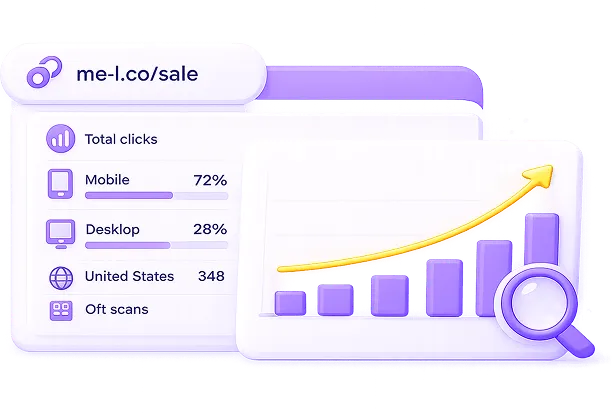
You can also use short links to keep campaign URLs clean and easier to share. When combined with link tracking and UTM parameters, they can help you understand how audiences interact with your content and which campaigns generate traffic.
E-commerce and Product Catalogs
Online stores may have hundreds of product pages. Shortening product URLs in batches can make it easier to prepare links for catalogs, promotions, product lists, and customer messages.
For example, a store launching a seasonal collection could prepare short links for all featured products in one list rather than creating each link separately.

Events and Registrations
Event organizers may need separate links for registration pages, ticket categories, event locations, and promotional campaigns. A bulk workflow can help prepare these links before an event launches.
It can also simplify link preparation when several events or registration pages need to be promoted at the same time.
Agencies and Client Projects
Agencies often manage campaigns for several clients at once. Processing URLs in batches can help teams prepare link lists for different projects and keep the results organized.
Using consistent names and campaign labels also makes it easier to identify the correct links when reviewing or updating them later.
How to Shorten Multiple URLs Using a CSV File
ME-Short-Link lets you shorten multiple URLs at once by uploading a CSV file. This is useful when you need to prepare links for marketing campaigns, organize URLs into folders, or manage a large number of destinations.
Follow these steps to shorten your URLs in bulk.
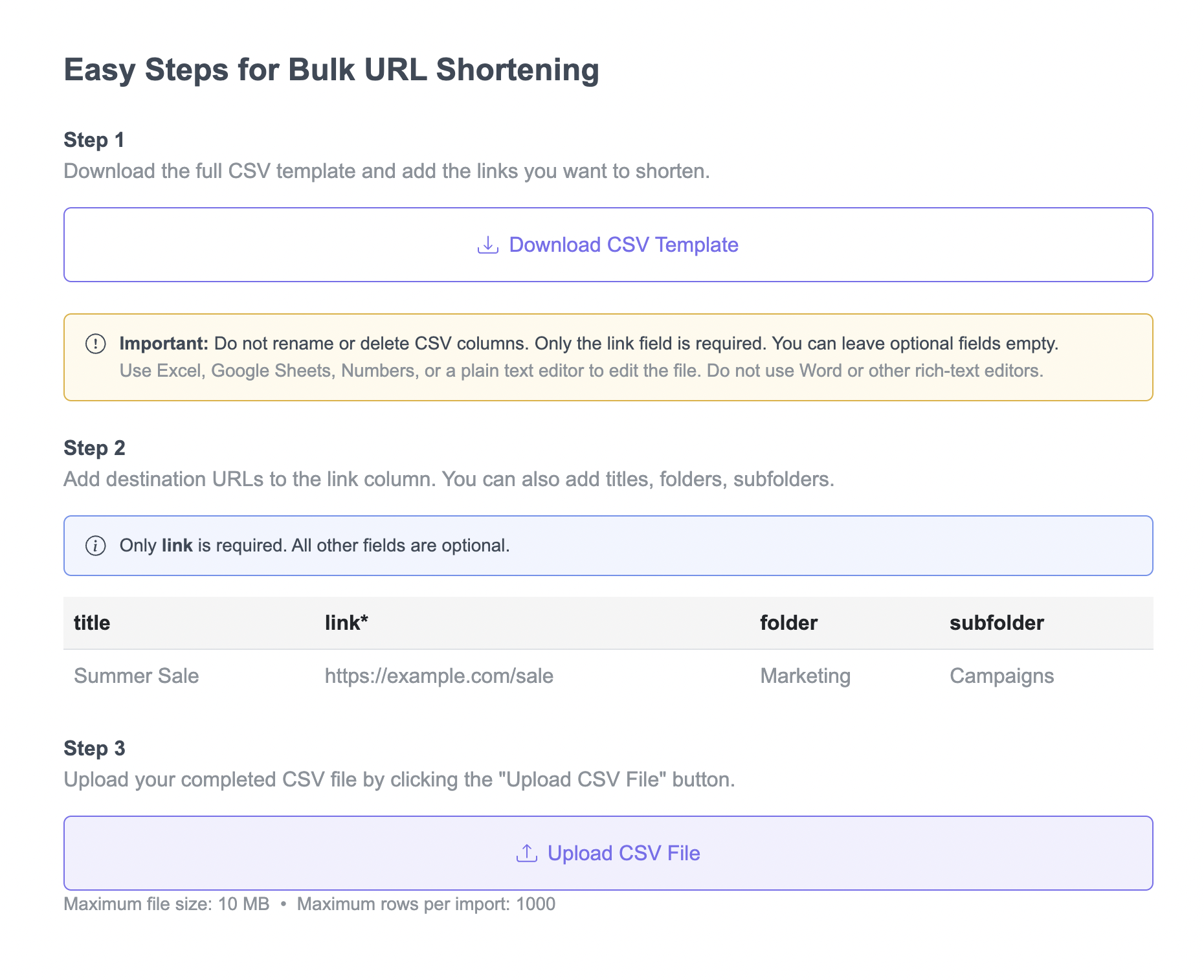
Step 1: Download the CSV Template
Download the provided CSV template and add the URLs you want to shorten.
Keep the original column names. Do not rename or delete any columns, as this may prevent the file from being processed correctly.
You can edit the CSV file using Excel, Google Sheets, Apple Numbers, or a plain text editor. Avoid using Microsoft Word or other rich-text editors.
Important: Only the link field is required. All other fields are optional.
Step 2: Add Your URLs and Organize Your Links
Add each destination URL to the required link column. You can also fill in optional fields to organize your links.
For example:
|
title |
link* |
folder |
subfolder |
|
Summer Sale |
https://example.com/sale |
Marketing |
Campaigns |
The available fields include:
- title: Add a recognizable name to identify the short link.
- link: Enter the destination URL. This field is required.
- folder: Specify a folder to organize your links.
- subfolder: Add a subfolder for more detailed organization.
You can leave optional fields empty if you don't need them.
Step 3: Upload the Completed CSV File
Once you've added your URLs, save the file in CSV format and return to the bulk URL shortening page.
Click Upload CSV File and select your completed file.
Keep these upload limits in mind:
- Maximum file size: 10 MB
- Maximum rows per import: 1,000
If your file contains more than 1,000 rows, split the URLs into multiple CSV files and upload them separately.
Tips for a Smooth Import
- Check that every row contains a valid destination URL in the link column.
- Keep all original CSV column names unchanged.
- Use clear titles and folder names to make your links easier to manage.
- Make sure the file is saved as CSV rather than as a Word document or another rich-text format.
- If you have more than 1,000 URLs, divide them into smaller files before uploading.
What Fields Should You Include in a CSV File?
The exact CSV format depends on the requirements of the bulk URL shortening tool. A simple file may only need a column containing the original URLs.
For better organization, consider including additional fields if the tool supports them.
|
Field |
Purpose |
Example |
|
url |
Original destination URL |
https://example.com/products/item-a |
|
name |
Identifies the link |
Product A |
|
campaign |
Groups links by campaign |
Summer Sale |
|
folder |
Helps organize links |
Summer Campaign |
|
tags |
Adds searchable labels |
email, product |
These field names are illustrative, not a confirmed import schema. Check the tool's actual CSV requirements before preparing your file.
Keep one destination per row, use consistent naming conventions, and remove duplicate or incomplete URLs where possible. If the tool supports optional fields, include only the information you need.

How to Organize Short Links with Folders and Tags
Creating short links in bulk is only part of the workflow. When you manage many links, you also need a way to find the right one later.
Folders and tags can help separate links by campaign, channel, client, or project, provided these organizational features are available in your account or tool.
Organize Links by Folder
Folders can group links by a shared purpose. For example, you might create folders for:
- Summer marketing campaigns
- Product launches
- Email newsletters
- Events and registrations
- Individual client projects
This structure makes it easier to locate related links and manage large collections.
Use Tags for Flexible Filtering
Tags can identify characteristics that apply across different folders. Examples include email, social-media, paid-ads, product, and event.
A link could belong to a campaign folder while also carrying tags that identify its channel and purpose.
Consistent naming and labeling can reduce confusion when several team members work with the same link collection or when you need to find links from an older campaign.
How to Download Bulk Shortening Results
After processing a batch, downloading the results gives you a reusable list of original URLs and their corresponding short links.
Depending on the tool's export options, the results may be available as a CSV file or another downloadable format.
A results file can help you:
- Copy short links into marketing materials.
- Share link lists with teammates or clients.
- Match each short link to its original destination.
- Keep a record of links created for a campaign.
- Prepare links for use across multiple channels.
Before using the exported links, review the file for missing destinations, duplicate entries, and incorrect URL mappings.
Keep the downloaded file in an appropriate project folder so you can retrieve the links when preparing future campaigns or updating existing materials.


Tips for Managing Bulk URL Shortening
A few simple practices can make batch link creation easier to manage.
- Check your URLs before importing. Make sure each destination is complete and correct.
- Use consistent link names. Descriptive names help you identify links later.
- Group related links. Use folders, tags, or campaign labels where supported.
- Keep the original URLs. Preserve the mapping between long URLs and short links.
- Review the exported file. Confirm that each short link corresponds to the correct destination.
- Track results after sharing. Use available analytics to understand link activity and campaign performance.
- Protect sensitive information. Avoid including passwords, access tokens, or private customer data in URLs or CSV fields.
Following these practices helps you maintain an organized link collection and reduces the risk of sharing incorrect destinations.
Start Shortening URLs
Preparing links in batches can save time when you work with large campaigns, product catalogs, event pages, or multiple client projects. A consistent process—from checking your URL list to organizing and downloading the results—helps keep your links accurate and easier to manage.
When choosing a URL shortening solution, consider your budget, expected link volume, and the features you need. Review the available ME-Short-Link pricing plans to understand which link management and analytics features are included and choose an option that fits your workflow.
With ME-Short-Link, you can create short links and manage their destinations. If you need to shorten multiple URLs at once, check the available tools and features to see whether bulk processing is supported.
Frequently Asked Questions
The number of URLs you can shorten in one batch depends on the tool's file size limits, processing capacity, and plan restrictions. Before preparing a large CSV file, check whether the tool limits the number of rows or URLs per upload. If necessary, divide a large list into smaller batches.


Was This Article Helpful?
Click on a star to rate it!
Thank you for your vote!
Average Rating: 5/5 Votes: 4
Be the first to rate this post!

Tech entrepreneur & digital strategist with over 9 years of experience in backend development and more than 5 years in executive leadership. Education Software and Web developer. More than 20 years of experience in software and web development.
View LinkedIn Profile